
The blog
Two Personalization Apps on Shopify? Yes, With Checks | 2026


Yes, two personalization apps can run on the same Shopify store, but installing both does not establish that they work together. The safest setup gives each app separate products or a clearly defined job. Before publishing, test that the selected design reaches the cart, order record, and production workflow without either app replacing the other’s data.
TL;DR
- Can two personalization apps run on the same Shopify store? Yes, but verify the exact combination before publishing.
- Assign one personalization owner per product unless both vendors document a supported shared workflow.
- Separate product templates help control placement; they do not prove scripts or order workflows are isolated.
- Bespo suits Shopify merchants who need live-preview personalization and production-ready files without developer involvement.
Can two personalization apps run on the same Shopify store?
Yes. Treat coexistence and compatibility as separate questions. Two installed apps can serve different parts of your catalogue, but a working product page alone does not prove a working order handoff.
For a 2026 rollout, choose the arrangement that matches your actual need:
Separate products
- Best for: Different personalization workflows across a catalogue
- Main benefit: Clear ownership of each product
- Main limitation: Shared theme and cart behaviour still need testing
- Recommendation: Start here
Temporary migration overlap
- Best for: Moving products between apps
- Main benefit: Lets you check the replacement before switching
- Main limitation: Old orders and files need continued access
- Recommendation: Set an exit condition
Shared product workflow
- Best for: A documented integration between complementary tools
- Main benefit: Each tool handles a defined task
- Main limitation: Requires an agreed data handoff
- Recommendation: Verify vendor support first
Duplicate customizers
- Best for: Two apps collecting the same choices
- Main benefit: No clear benefit when the fields duplicate each other
- Main limitation: Creates competing sources of instructions
- Recommendation: Avoid
Changing templates during setup? Keep your personalization data during a Shopify theme update in the same test plan.
Why this matters
Your shopper sees a form. Your production team needs an unambiguous specification. Those are different checkpoints, and you need to verify both.
A preview that looks right is not enough. The saved text, selected variant, uploaded artwork, and production file must all describe the same purchase. Test those details wherever your workflow stores them.
Judge a two-app setup by the completed order, not by the number of widgets that appear correctly. For your 2026 launch, record which app owns each product and which system supplies the final production instructions.
Separate products: give each app a defined area
Best for: stores that need different personalization workflows for different products. Assign each product to one app, then configure the relevant product template and personalization fields.
For example, you can plan one workflow for engraved items and another for printed items. This is a division of responsibility, not proof that any particular pair of apps supports the arrangement. Confirm each app’s product-assignment controls before choosing this route.
Shopify product templates determine how assigned products appear. App blocks provide placement within compatible theme sections. App embeds have separate activation settings; inspect those too rather than assuming template separation controls every part of an app.
- Assign the intended template to each test product.
- Remove the other customizer’s visible block from that template.
- Check each app’s product targeting and embed settings.
- Test a cart containing products handled by both apps.
The benefit is clarity. The limitation is that separate product pages still share the storefront and cart, so your verification must include mixed orders.
Migration overlap: keep both apps only for a defined transition
Best for: replacing an existing personalization app without switching the whole catalogue at once. Keep the replacement focused on selected products while you verify its storefront and order workflow.
The useful part is controlled comparison. The extra work is preserving access to existing orders, artwork, and production instructions while ownership changes.
Define what completion means before starting your 2026 migration. A product is ready to move when the replacement captures the required choices, saves them correctly, and provides the information your fulfilment team needs.
Do not treat app removal as the first migration step. First establish where historical personalization records live, how your team accesses them, and what the outgoing vendor’s removal process affects.
Your exit condition should be operational: no active product depends on the outgoing customizer, and outstanding orders remain fulfilable. That is more useful than an arbitrary uninstall date.
Shared products: require a documented handoff
Best for: complementary tools with a supported integration. One tool can collect personalization while another handles a separate downstream task, provided the transfer between them is defined and verified.
Two independent forms asking for the same engraving text are not a handoff. They are competing sources of instructions. Choose one authoritative field instead.
Before enabling a shared workflow, ask both vendors:
- Which tool owns the customer’s final choices?
- Where are those choices saved against the purchased item?
- Which tool generates the production file?
- How does the receiving tool identify the correct design?
- What happens when a shopper edits or removes the item?
The advantage is a division of tasks. The limitation is dependency: every transfer needs an agreed input and output. Do not publish a shared-product workflow based only on successful installation.
Why two-app compatibility varies
Compatibility depends on how the apps interact with your store, not simply on whether both appear in Shopify’s app list. Check these parts of the implementation:
- Product targeting. Establish whether each app restricts personalization to assigned products and how you configure that restriction.
- Theme placement. Check app blocks, app embeds, and any existing theme customizations. Visible placement and script activation are separate checks.
- Cart behaviour. Inspect how each customizer submits the chosen variant and personalization details through your actual purchase path.
- Data ownership. Shopify line item properties can carry customization details, but verify the exact fields your apps save and consume.
- Production handoff. Confirm how the fulfilment team retrieves the correct instructions and files for each purchased item.
- Storefront performance. Compare the same product pages before and after activation. Measure the change rather than assuming an impact.
These checks apply to your specific theme, app configurations, and order workflow. A compatibility statement should name that setup, not promise that every store behaves identically.
How do you test two personalization apps before publishing?
Use a controlled sequence. For a 2026 rollout, test with 2 device types: a phone and a desktop computer, and place 3 test orders: one for each app and one mixed order. These are recommended checks, not a guarantee that every edge case is covered.
1. Map ownership
Write down which products belong to each app. Include the customer-facing fields, saved order details, and production output expected from each workflow.
Set 1 personalization owner per product as your default rule. If a documented integration requires shared responsibility, write down the boundary rather than leaving it implicit.
2. Isolate placement
Duplicate your theme before editing storefront placement. Configure the test templates, blocks, and embed settings, then inspect each intended product page.
A duplicate theme protects your theme edits; it does not isolate every app setting. Check whether product assignments and other configuration changes also affect the live store before saving them.
3. Check the cart
Enter distinctive test text so you can follow it through the purchase. Add products handled by each app, change quantities, remove an item, and inspect the remaining personalization details.
If your storefront offers quick-add or accelerated purchase paths, test those paths too. Required personalization should not depend on shoppers choosing only the route you tested first.
4. Inspect orders
Place the test orders and compare the saved details with the choices you entered. Check each purchased item separately, including repeated purchases of the same variant with different personalization.
Verify the relevant artwork or file reference as well as the visible text. A production instruction needs to identify the correct item, not merely exist somewhere on the order.
5. Verify fulfilment
Ask the person handling fulfilment to retrieve the specification using the normal process. Confirm the text, technique, product, and file match the order.
Make the test practical. If production staff need extra explanations to identify the authoritative instructions, fix the handoff before publishing.
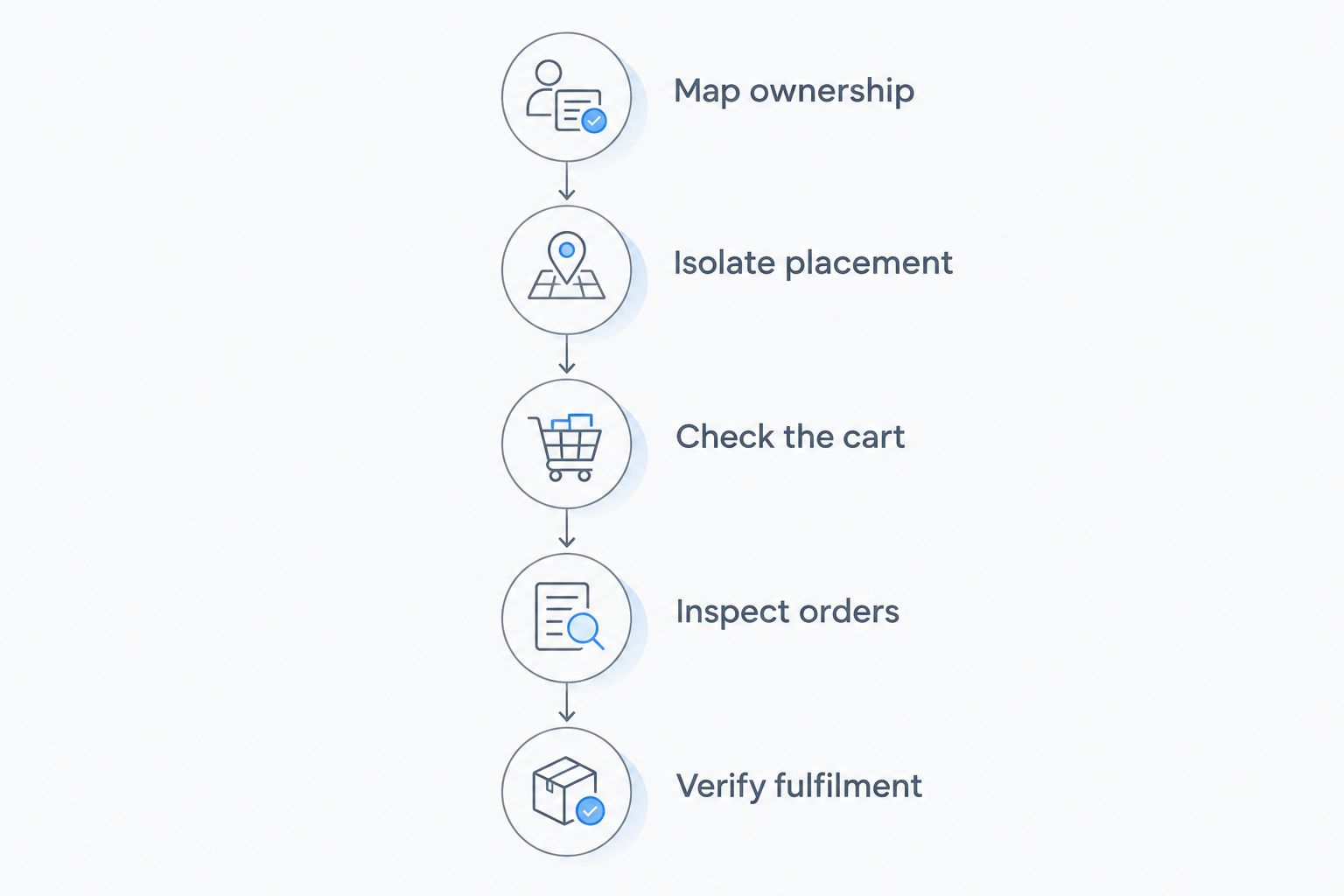
Verify the saved order and production handoff, not just the product-page preview.
Keep a short record of the tested theme, app configuration, and purchase paths. Repeat the relevant checks after changes to those parts of your 2026 setup; an earlier successful test does not validate a different configuration.
What should you do if the apps conflict?
Remove overlap before adding workarounds. Identify the first point where the result differs from the intended workflow: product page, cart, saved order, or production output.
Then change one setting at a time and repeat the same test. Start with product assignments and visible blocks. Next inspect embed settings and any shared fields or order-processing rules.
When contacting support, provide the affected product, theme, exact reproduction steps, and expected result. Include an example order where appropriate, with customer information removed.
Ask for a supported configuration, not a general assurance that the apps are compatible. If neither vendor documents how the shared workflow should operate, return to separate product ownership or consolidate the duplicated function.
Where Bespo fits in a two-app decision
Bespo is best for Shopify merchants who need live-preview personalization and production-ready files without developer involvement. Its stated workflow covers embroidery, engraving, monograms, embossing, debossing, and print.
Use Bespo as a defined personalization workflow rather than adding a second customizer to repeat the same choices. The benefit is a customer-facing preview connected to production output. The constraint is that this capability does not establish compatibility with an unspecified second app.
Evaluate the extra tool against a separate requirement. If the second app duplicates the same inputs, preview, and production task, you need a reason to keep the overlap. If it performs a distinct task, verify the boundary and handoff.
Can both apps personalize the same product?
Two apps can be assigned to the same product, but assignment is not evidence of a supported combined workflow. Keep 1 personalization owner per product unless the vendors document how the tools share responsibility.
If both tools collect the same customer choice, remove the duplicate field. Your production team needs a single authoritative instruction.
Will separate product templates prevent every conflict?
Separate product templates control page layout, not every app interaction. They do not establish isolation for app embeds, shared cart behaviour, or order-processing workflows.
Use templates to organise placement. Then verify the full purchase and production path for each product group and for a mixed cart.
Can you keep the old app while testing a replacement?
Yes, temporary overlap is a valid migration approach when product ownership is explicit. Keep old-order access and production requirements in the transition plan.
For a 2026 migration, switch products only after checking the replacement’s saved order details and fulfilment output. Remove the outgoing app after its active responsibilities end.
FAQ
Can I install two personalization apps on one Shopify store?
Yes, two personalization apps can be installed on one Shopify store. Installation does not prove compatibility, so verify product targeting, cart behaviour, saved order details, and production output before publishing.
What is the safest way to use two Shopify personalization apps?
Assign separate products to each app and keep one authoritative personalization workflow per product. Test a mixed order as well as orders handled by each app individually.
Do separate Shopify product templates stop app conflicts?
Separate templates organise storefront placement but do not prove complete isolation. Check app embeds, cart submissions, and order-processing behaviour separately.
How many test orders should I place before launching?
Place 3 test orders as an initial check: one handled by each app and one containing products from both. Add tests for any distinct purchase paths or production workflows your store uses.
Can two customizers collect engraving text on the same product?
Avoid duplicate engraving fields unless a documented integration defines how they work together. Choose one authoritative source for the text your team will produce.
Is Bespo a fit for Shopify product personalization?
Bespo fits Shopify merchants who need live-preview personalization and production-ready files without developer involvement. Assess any second app against a separate requirement and verify the exact combination.
Should I uninstall my old personalization app before testing a new one?
No, do not remove the old app before verifying the replacement and your access to outstanding-order instructions. Establish where historical data and files live before following the outgoing vendor’s removal process.
One last thing
Test the same variant with different personalization in the same cart. Use distinct text on each item and check that the saved order preserves the distinction.
That test answers a more useful question than whether both widgets load: can your team identify exactly what to make for every purchased item?