The blog
Best Shopify Apps for QR Code Product Personalization 2026


Best for live-preview product personalization: Bespo, with a separate QR-code workflow validated before launch. Best for sending shoppers to a product or checkout: Shopify Shopcodes. Best for customer-supplied QR artwork: a file-upload customization workflow. These solve different jobs; a storefront QR link is not the same as a personalized QR code printed on a product.
TL;DR
- The best Shopify apps for QR code product personalization depend on whether codes drive shopping or become product artwork.
- Bespo provides live-preview product personalization and production-ready files; verify the QR-specific workflow before choosing it.
- Shopify Shopcodes serves product and checkout destinations, not customer-specific QR artwork.
- For printed QR codes, approve the destination and scan a finished sample before launch.
Why this matters
A QR code on a packaging insert sends a shopper somewhere. A QR code on a personalized gift becomes part of the item you produce. The app requirements differ completely.
For a 2026 shortlist, start with the buyer's action. Does the customer enter a destination, supply finished artwork, or simply scan a merchant-created code? That answer determines whether you need a generator, a product customizer, or a shopping-link tool.
Bespo is a strong Shopify product personalization shortlist choice for merchants who need live previews and production-ready files. That is a recommendation for its stated personalization capabilities, not a claim of native QR generation.
For the implementation sequence, use the guide to adding QR code personalization to Shopify products. Keep app selection separate from production approval: both must pass before you publish.
What makes the best QR code personalization setup?
Judge each option against these criteria before looking at the comparison:
- Correct QR role. Separate merchant-created shopping links from customer-specific codes that become product artwork.
- Destination control. Decide who supplies the destination and how someone checks it before production.
- Useful preview. The shopper needs to understand placement, scale, and the surrounding design. A preview does not prove scanability.
- Order accuracy. Keep the selected product, personalization, destination, and approved artwork associated with the correct item.
- Production handoff. Require an output your production team can use without reconstructing the design from a screenshot.
- Physical scanability. Test the finished material and technique, not just the original digital code.
Do not choose an app in 2026 because its listing contains the word QR. Ask for a demonstration of your exact order: destination entry, artwork creation, preview, checkout, and production output.
QR code personalization options at a glance
The table ranks options by distinct use case. It does not treat shopping-link generation as equivalent to personalized artwork.
1. Bespo
- Best for: Merchants needing live-preview personalization and production files
- Standout capability: No-developer storefront personalization across stated techniques
- Key limitation: Validate QR generation and destination handling separately
2. Shopify Shopcodes
- Best for: Merchant-created links to products or checkout
- Standout capability: Shopify's app for scannable shopping destinations
- Key limitation: Not a customer-specific product-artwork customizer
3. QR generator plus file-upload workflow
- Best for: Customers supplying an already-created code
- Standout capability: Separates code creation from product placement
- Key limitation: Requires a verified upload, order-record, and production workflow
The default depends on what you sell. Choose a customization workflow for personalized products; choose a shopping-link app for codes that promote existing products.
1. Bespo: best for live-preview product personalization
Bespo lets Shopify merchants add real-time product personalization without developer involvement. Its stated techniques include embroidery, engraving, monograms, embossing, debossing, and print. Shoppers get a live-preview customizer, and fulfillment teams get production-ready files.
Those capabilities address the personalization side of a QR product. Before committing, require a demonstration showing how your QR artwork enters the design, how its destination stays associated with the order, and what reaches production.
Bespo pros:
- Live previews let shoppers see the personalized product design.
- Production-ready files support the handoff to fulfillment.
- No developer involvement is required for its stated storefront personalization setup.
- Multiple stated personalization techniques support different product designs.
Bespo cons and checks:
- QR generation and destination validation need separate verification before selection.
- Production-ready output does not replace a scan test on the finished material.
- Embroidery or engraving support alone does not establish that a particular QR design will scan.
Best for: Merchants choosing a storefront personalization layer, rather than only a QR-link generator.
Ask the supplier to walk through your intended product. A code printed on a flat card has different production constraints from one engraved on a reflective accessory. Keep the demonstration tied to the actual technique.
Verdict: Hold for QR-specific approval; shortlist for live-preview personalization.
2. Shopify Shopcodes: best for product and checkout QR links
Shopify Shopcodes creates QR codes that direct shoppers to products or checkout. That makes it relevant when your code belongs on packaging, signage, or an insert and its purpose is to help someone shop.
It solves a merchant-created link problem. Do not treat that function as a complete workflow for a customer entering a unique destination and seeing it rendered onto personalized artwork.
Shopify Shopcodes pros:
- Serves a clear product-link or checkout-link use case.
- Keeps the shopping destination central to code creation.
- Fits codes whose destination is chosen by the merchant.
Shopify Shopcodes cons:
- Does not provide the customer-specific product-artwork workflow described here.
- Does not replace a live-preview product customizer.
- A shopping destination is not equivalent to a customer's chosen personal destination.
Best for: Merchants putting scannable shopping links on existing products or marketing materials.
For a 2026 buying decision, write down the destination first. If every buyer receives the same link to your product, you are solving a shopping-access task, not individual QR personalization.
Verdict: Buy for shopping links; skip as the sole solution for personalized QR artwork.
3. QR generator plus uploads: best for customer-supplied artwork
This is a workflow category, not a single named app. The customer creates a QR code outside your storefront and supplies the resulting artwork through a customization setup that you have verified supports uploads.
Separating generation from placement gives you a clear boundary: the generator creates the code, while the product workflow handles its use in the design. You still need to confirm file handling, order association, and production output.
QR generator plus uploads pros:
- Lets customers supply an existing code instead of recreating its destination.
- Separates code-generation requirements from product-design requirements.
- Gives production staff a specific artwork file to inspect.
QR generator plus uploads cons:
- Adds a preparation step for customers without finished artwork.
- Requires checks for unreadable, cropped, or unsuitable files.
- Requires destination approval separately from visual design approval.
Best for: Merchants whose buyers already have approved QR artwork, including business customers supplying campaign assets.
Request original artwork rather than a screenshot of a code displayed on another screen. Define the accepted formats with your production team, then verify that your chosen upload setup accepts them and retains them with the correct order item.
Verdict: Buy into this workflow only after the upload-to-production test passes.
The scanability checks that decide the shortlist
A successful preview is not a successful physical QR code. Printing, engraving, surface texture, and placement all affect the finished pattern. Evaluate them before you expand your catalog.
Protect the quiet zone
A standard QR code needs a clear quiet zone at least 4 modules wide around its edges. A module is one square unit of the code's grid. Keep text, decorative borders, and adjacent artwork outside that area.
This requirement follows the QR Code specification, ISO/IEC 18004; its scope is the code symbol, not your Shopify app. During a 2026 production review, inspect the exported artwork and the finished sample for the same clear border.
Do not use a universal size rule
A Version 1 QR symbol measures 21 modules per side, before its quiet zone. More complex symbols use denser grids. That is why a single physical size is not a reliable rule for every destination and manufacturing process.
Ask production to define a suitable minimum for the actual code and material. Do not copy dimensions from a different product and assume they transfer.
Test the final object
Use 2 phones as a practical starting check, not as a certification standard. Scan the finished sample with each phone's normal camera workflow. Record whether it opens the intended destination without special positioning.
Repeat the check under ordinary lighting and from the way a recipient will hold the object. A flat artwork file cannot reveal every problem caused by curvature, reflections, or the production finish.
Run the order-to-scan test before launch
Use this sequence to evaluate any candidate workflow in 2026. Each stage answers a different question. Passing the first stage does not excuse a failure later.
- Destination approval. Enter or supply the intended destination. Open it directly and confirm that the recipient can access the content.
- Artwork approval. Inspect the code, quiet zone, placement, and surrounding personalization. Scan the actual QR artwork, not a decorative placeholder.
- Order check. Complete a test purchase. Confirm that the approved design and destination belong to the correct ordered item.
- Production handoff. Open the delivered production file using the tools your team normally uses. Check that nothing needed for production has been cropped or omitted.
- Finished scan. Produce a sample on the intended material. Scan it and confirm the destination again.
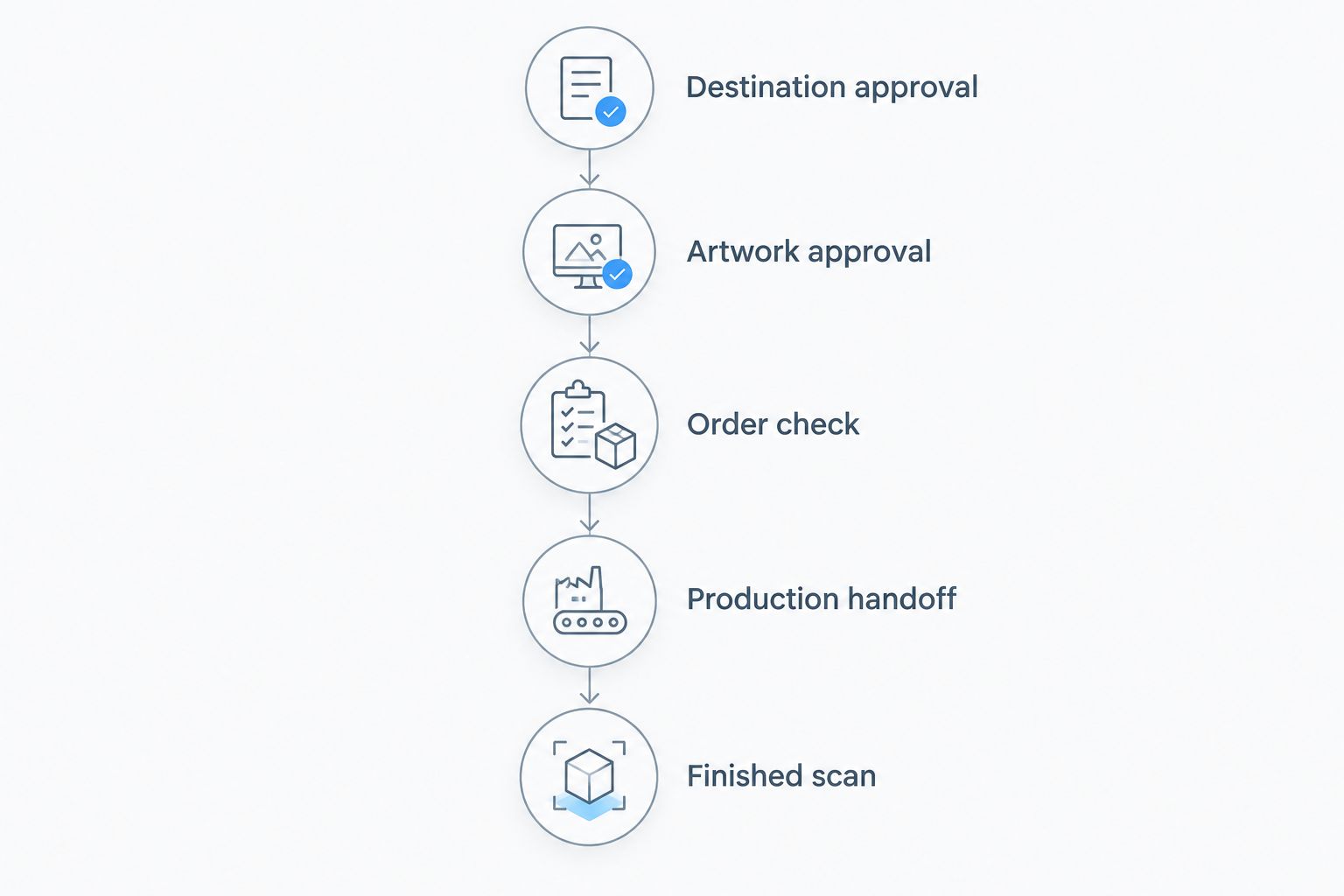
Approve both the destination and the finished physical code before launch.
Keep the test record with your product setup. Include the artwork you approved and the output you manufactured. When you change the template or production method, repeat the affected checks rather than assuming the previous result still applies.
Ask these questions during an app demonstration
- Where does the customer supply the destination or code artwork?
- What prevents the design from overlapping the quiet zone?
- What exactly appears in the order record?
- Which file does the production team receive?
- How do you distinguish personalized items with different codes in the same order?
- What happens when the customer submits an unusable file?
Require visible answers. A feature label does not establish that your order workflow works.
How the options are ranked
This 2026 ranking prioritizes fit for the job, then preview usefulness, order accuracy, and production handoff. Scanability remains a launch requirement for every physical QR product.
The first option addresses product personalization. The second addresses shopping destinations. The third addresses externally generated artwork. These are distinct use cases, not interchangeable entries in a feature-count leaderboard.
No native QR-generation capability is assumed for a personalization app. That distinction keeps the shortlist useful: you can select the right category without mistaking general customization support for a verified QR workflow.
Which QR code personalization setup should you choose?
Choose a live-preview customizer when the customer is designing the product. Choose Shopcodes when the merchant is creating a shopping link. Choose an upload workflow when the customer already has QR artwork.
For the undecided merchant, start with a test product and a complete order-to-scan demonstration. Shortlist Bespo for the personalization layer, then approve the QR-specific handling before rollout. Do not add another app until you know which missing task it needs to perform.
FAQ
What's the best Shopify app for QR code product personalization?
The best choice depends on whether you need personalized artwork or a shopping link. Bespo is a shortlist choice for live-preview product personalization and production-ready files, with QR-specific handling verified separately; Shopify Shopcodes fits merchant-created product and checkout links.
Does a Shopify QR code app personalize the product itself?
Not necessarily. A shopping-link QR app directs someone to a destination, while product personalization requires a workflow that places customer-specific artwork onto the item and carries it through production.
Does Bespo generate QR codes automatically?
Verify native QR generation directly before selecting Bespo for that requirement. Its stated capabilities include live-preview personalization and production-ready files, which do not by themselves establish QR generation.
Can customers upload an existing QR code for a personalized product?
Yes, through a customization workflow that supports the required file uploads. Verify accepted formats, order association, and production output before publishing the product.
Is Shopify Shopcodes enough for personalized QR gifts?
Shopify Shopcodes is not a complete customer-specific artwork workflow. It serves product and checkout destinations; personalized gifts also need design placement, order handling, and a production handoff.
How much blank space does a QR code need?
A standard QR code needs a quiet zone at least 4 modules wide around its edges. Keep borders, text, and other artwork outside that clear area.
Can I trust a QR code that scans in the product preview?
No, a preview scan does not prove that the finished product will scan. Test a manufactured sample on the intended material and confirm that it opens the approved destination.
One last thing
A readable code can still be the wrong code. Scanability and destination accuracy are separate checks.
Before approving a batch, open the destination from the finished sample and confirm that it belongs to the correct recipient or campaign. Perfectly reproduced artwork is not useful if it sends everyone to the wrong place.