The blog
Add Proof Approval Before Printing Shopify Orders (2026)


Print an order before the customer signs off on the artwork and you're gambling with a personalized product that can't be resold. Adding a proof approval step before printing Shopify orders in 2026 takes one afternoon of setup and it stops the single most expensive mistake in custom fulfillment: shipping the wrong name, wrong font, or wrong placement.
TL;DR
- Adding a proof approval step before printing Shopify orders means holding every custom order at a manual checkpoint until the customer confirms the artwork.
- Bespo's live-preview customizer generates the production file customers already see, so that same file becomes your proof source in 2026 — no extra design step needed.
- Route approved orders straight into your fulfillment queue and hold everything else — Buy this workflow if you ship engraved, embroidered, or printed personalization.
- Skip proof approval only if every order is a single fixed design with zero customer-entered text or image.
Why this matters
Personalized orders don't fail at the printer. They fail earlier — a customer fat-fingers "Jonathon" as "Jonathan," picks a font that clips on a small engraving area, or uploads a low-res photo that prints blurry. None of that shows up until the order is already in your fulfillment queue, and by then you're paying for a reprint or eating a refund.
A proof approval step puts a human checkpoint between "order placed" and "order printed." In 2026, most Shopify stores running personalization at any real volume treat this as a mandatory production stage, not an optional nice-to-have. The order still comes in fast. It just doesn't move to print until someone — the customer, your team, or both — confirms the exact text, layout, and file that's about to go on the product.
If a customer never sees a proof before it prints, you're printing a mistake, not a product.
What you'll need
- A Shopify order tagging or order hold system (native tags work; some apps automate this)
- A live-preview product customizer that outputs a production-ready file — this is what becomes your proof
- An email or messaging tool for sending proofs and logging replies
- A shared checklist your team uses before releasing any order to print
- 30-60 minutes to configure the hold and notification steps the first time
The steps
Step 1: Decide which orders actually need a proof
Not every personalized order carries the same risk. An order with a name field or uploaded photo needs a proof. An order using a pre-set design with no customer input usually doesn't. Drawing this line first keeps the approval step from slowing down your whole store.
Set the rule at the product level, not the order level, so it applies consistently. Common mistake: treating every SKU as high-risk and proofing orders that never needed it, which just adds delay without cutting errors.
Step 2: Capture the exact file the customer approved at checkout
Your customizer should already generate a production-ready file the moment a shopper finishes personalizing — that file, not a redrawn version, is your proof source. If your customizer for engraved text or monogram products regenerates the layout after checkout, you've lost the connection between what the customer saw and what gets printed.
Save that original file with the order so nothing gets reinterpreted downstream. Expected outcome: every custom order arrives at your review stage with the same artwork the shopper confirmed on the product page.
Step 3: Add a hold status before fulfillment
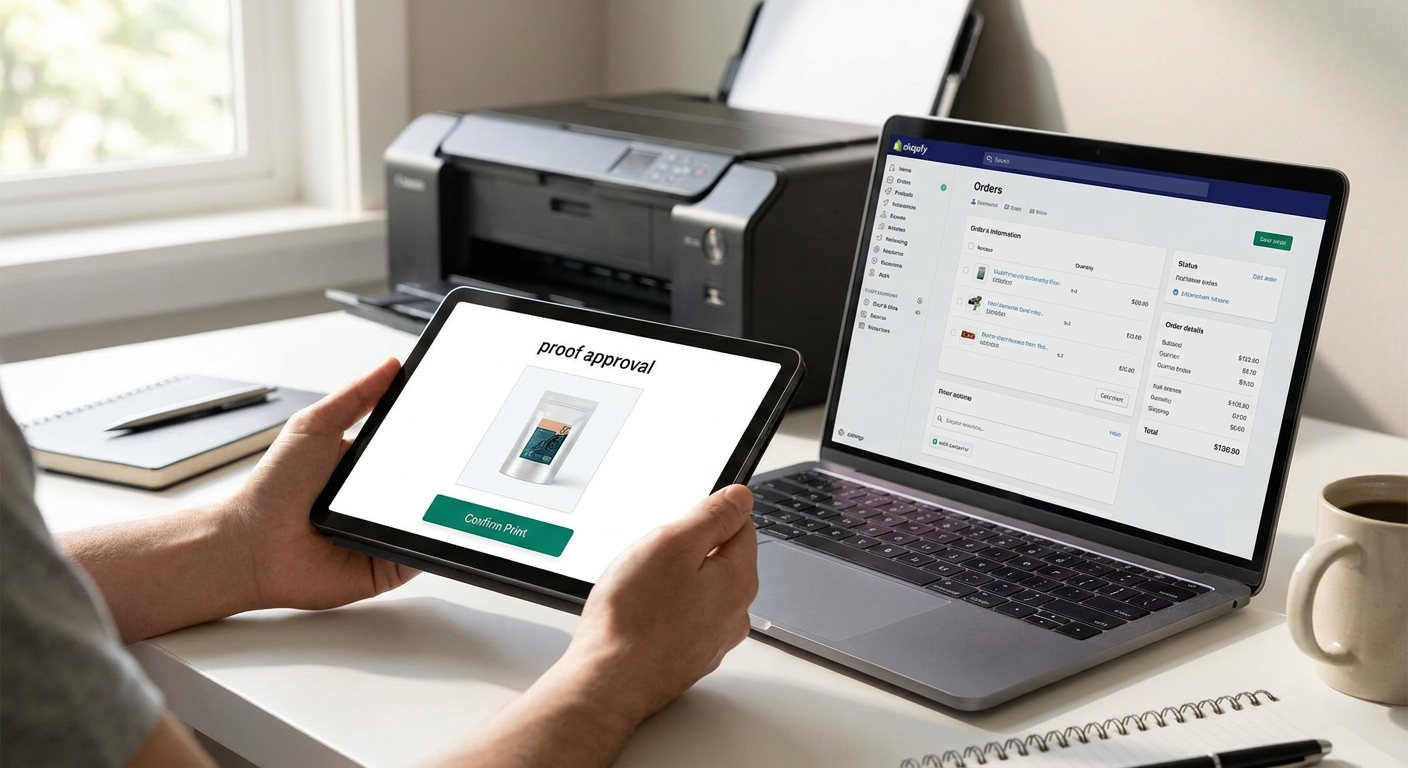
Tag every personalized order "Pending Proof" the moment it's placed, and exclude that tag from your normal pick-pack-ship automation. This is the step that actually stops printing — without it, a proof step is just a suggestion nobody follows under deadline pressure.
For stores connecting a customizer to Printify or a similar partner, build this hold in before the order ever reaches the partner's system, not after. Common mistake: adding the hold tag but leaving an automation rule that still pushes tagged orders to print.
Step 4: Send the proof and set a response deadline
Email the customer their exact file — text, placement, color — with a clear yes/no ask and a deadline, typically 24-48 hours. Vague requests like "let us know if this looks right" get ignored; a direct question with a deadline gets answered.
Log every reply against the order, whether it's a confirmation, a change request, or silence past the deadline. Common mistake: sending a proof but not tracking who replied, which means someone has to manually chase every order before it can move.
Step 5: Build a two-person check for engraved and monogrammed text
Spelling errors on engraved text options are the single hardest mistake to catch with automation alone — the system can't know "Jaxxon" is intentional and "Jaxson" is a typo. A second set of eyes on any name, date, or initials field catches most of what a customer's own proof approval misses.
Keep this check short: does the text match what the customer typed, and does it fit the printable area at the size ordered? Expected outcome: near-zero misspelled-name reprints on engraved and embroidered orders.
Step 6: Release approved orders straight to print
Once a customer confirms, remove the hold tag and let the order flow into your normal fulfillment automation immediately — don't add a second manual step here or you'll slow down orders that already cleared review. This is where the proof step should feel invisible to your ops team.
For rejected or changed proofs, route the order back to Step 4 with the corrected file rather than starting the whole workflow over. Common mistake: manually re-entering corrected orders instead of updating the same order record, which introduces new typing errors.
Step 7: Audit rejected and expired proofs weekly
Check which orders got no response, which got rejected twice, and which held longer than 48 hours. This tells you whether your proof step is a genuine quality gate or a bottleneck customers are quietly abandoning at.
A proof approval step that consistently loses 10%+ of orders to non-response usually means the email is landing in spam or the ask isn't clear enough, not that customers don't care about their order.
Build proofing into your customizer
Live-preview files double as your proof source from the first click.
Troubleshooting
- Customer never responds to the proof email: Add a second reminder at 24 hours and default to auto-approval only if you've stated that policy upfront at checkout.
- Team member releases an order without checking the file: Require a named sign-off on the hold tag removal, not just a status change, so there's an accountable step.
- Proof looks different on the customer's phone than on desktop: Confirm your customizer renders the same file for mobile and desktop preview before you send anything out for approval.
- Rush orders skip the hold entirely: Build the hold into the same automation that tags rush orders, not a separate rule that can be bypassed.
- Approved proof doesn't match the file sent to your print partner: Confirm the connection between your customizer and your fulfillment partner passes the exact approved file, not a re-exported version.
- Bulk orders get proofed one at a time and back up the queue: Batch proof requests for orders placed the same day rather than sending them as they trickle in.
Tools and resources
- A live-preview customizer that outputs the production file at checkout, so there's nothing to redraw before proofing
- Shopify order tags or a hold app to stop tagged orders from entering fulfillment automation
- An email tool that logs replies against the order number
- A written checklist for anyone with permission to release a held order
- A connection to Printify or your print partner that only pulls approved files
What to do next
Once the hold-and-approve loop is running, the next gap to close is usually the preview itself — if customers can't see an accurate render before they buy, you'll get more proof rejections than you should. Setting up live preview for a Shopify product customizer cuts rejection rates because the customer approves something close to the final file before they even check out.
FAQ
How do I add a proof approval step before printing Shopify orders?
Tag personalized orders with a hold status the moment they're placed, send the customer their exact production file for a yes/no confirmation, and only release the hold once that confirmation is logged. Most stores set a 24-48 hour response deadline in 2026 to keep the queue moving.
Does every personalized order need a proof?
No. Orders with customer-entered text, uploaded images, or engraved names benefit most from a proof step; fixed-design products with no personalization rarely need one.
What's the fastest way to send a proof to a customer?
Email the exact file the customer already saw in your live-preview customizer, with a direct yes/no question and a deadline. Vague requests get ignored more often than clear ones.
Can proof approval be automated on Shopify?
The hold, the email trigger, and the release-to-fulfillment step can all be automated; the actual review of engraved or monogrammed text is best kept manual since spelling errors are hard for automation to catch.
How long should customers have to approve a proof?
24 to 48 hours is standard for most personalized Shopify stores in 2026. Shorter windows increase non-response; longer windows slow down your fulfillment queue.
What happens if a customer never responds to a proof?
Send one reminder near the deadline, then either hold the order or auto-approve based on a policy you've stated at checkout — silent indefinite holds create the most customer complaints.
Does a proof approval step slow down fulfillment?
It adds 24-48 hours to orders that need review, but it prevents reprints and refunds on personalized products, which usually cost more time than the wait.
Can I connect proof approval to a print-on-demand partner like Printify?
Yes. Build the hold before the order reaches your Printify or Printful connection so unapproved files never get pulled into their production queue.
One last thing
The order that costs you the most in 2026 usually isn't the one with a complicated design — it's the plain name necklace or single-line engraving where nobody paused long enough to check the spelling. A proof approval step catches that order before it's a refund, not after.