
The blog
Can Shopify theme updates lose personalisation data? 2026


Yes. A Shopify theme update can make personalisation data disappear from the shopper’s view or stop new choices from reaching the cart. That does not, by itself, mean existing order data has been deleted. In 2026, the safe move is to test the new theme from product page to production file before publishing it.
TL;DR
- Yes: a Shopify theme update can interrupt personalisation data capture without deleting existing orders.
- Check the app embed and customisation block in the new theme before publishing.
- Place a test order and confirm its choices reach the order and production workflow.
- Bespo is best for Shopify merchants who need live-preview personalisation and production-ready files without developer involvement.
Why this matters
A product page can look finished while its customisation flow is broken. The shopper enters a name or uploads artwork, but the choice never appears in the cart. For personalised products, that is a fulfilment problem, not a cosmetic issue.
Treat a theme change as a storefront migration. The guide to migrating personalisation data between Shopify themes is a useful companion when you are planning the switch; the essential check is still an order placed through the replacement theme.
Can personalisation data be lost during a Shopify theme update?
Yes, new personalisation data can fail to transfer when a replacement theme is missing the components that collect or submit it. Whether existing records are affected depends on where those records live and what the update changes. A theme change and a data deletion are different events.
Product-page fields and preview
- What a theme update can affect: Fields or previews can be absent from the replacement theme
- What to verify: Enter a choice and confirm the preview and selected options respond
Cart submission
- What a theme update can affect: A visible field does not prove its value reaches the cart
- What to verify: Add the product to cart and inspect the personalisation details
Existing Shopify orders
- What a theme update can affect: A theme change does not itself establish that past orders were deleted
- What to verify: Open an existing order and check its recorded details
App-managed designs or files
- What a theme update can affect: Availability depends on the app’s storage and theme connection
- What to verify: Open an existing record, then check a file created through the new theme
Do not use the product-page preview as your only pass condition. It proves the shopper can see a change on screen; it does not prove that the choice is attached to the item the team will fulfil.
What does “lost” mean here?
Merchants use lost for several different failures. The distinction tells you where to investigate:
- Not shown: The option or preview is missing from the product page. Check the replacement theme’s app embed, app block and product template.
- Not submitted: The shopper sees an option, but its value is missing from the cart. Check the add-to-cart path used by that page.
- Not attached to the order: The cart shows a choice, but the order does not carry the detail your team needs. Check the checkout and order record.
- Not available for production: The order exists, but the associated design or file cannot be retrieved. Check the app’s record and the handoff your team uses.
These failures need different fixes. Re-adding a block can restore a missing interface; it cannot recreate a shopper’s choice that was never submitted with an order.
Check the new theme before you publish it
Keep the current live theme in place while you test the replacement. Work through the complete purchase path on the new theme, using a product with the personalisation options your customers actually use.
- Confirm the product template. Open the replacement theme’s product page in the theme editor. Check that the intended template is assigned and the customisation area is present.
- Check the app embed and block. Enable the required app embed and add the customisation block where the shopper needs it. A block configured in the old theme should not be assumed to appear in the new one.
- Enter a real test choice. Type sample text or use the relevant option on that product. Check the live preview if one is part of the experience.
- Add the item to cart. Inspect the cart item, not just the product page. The chosen details must still be associated with the item.
- Complete a test order. Open the resulting order and check the personalisation details your fulfilment team needs.
- Check the production handoff. If your workflow uses a generated file or app-managed design, confirm that the new order has the expected output.
Repeat the test for product templates that use different personalisation methods. A text field working on one template does not establish that an image upload or another product layout works elsewhere.
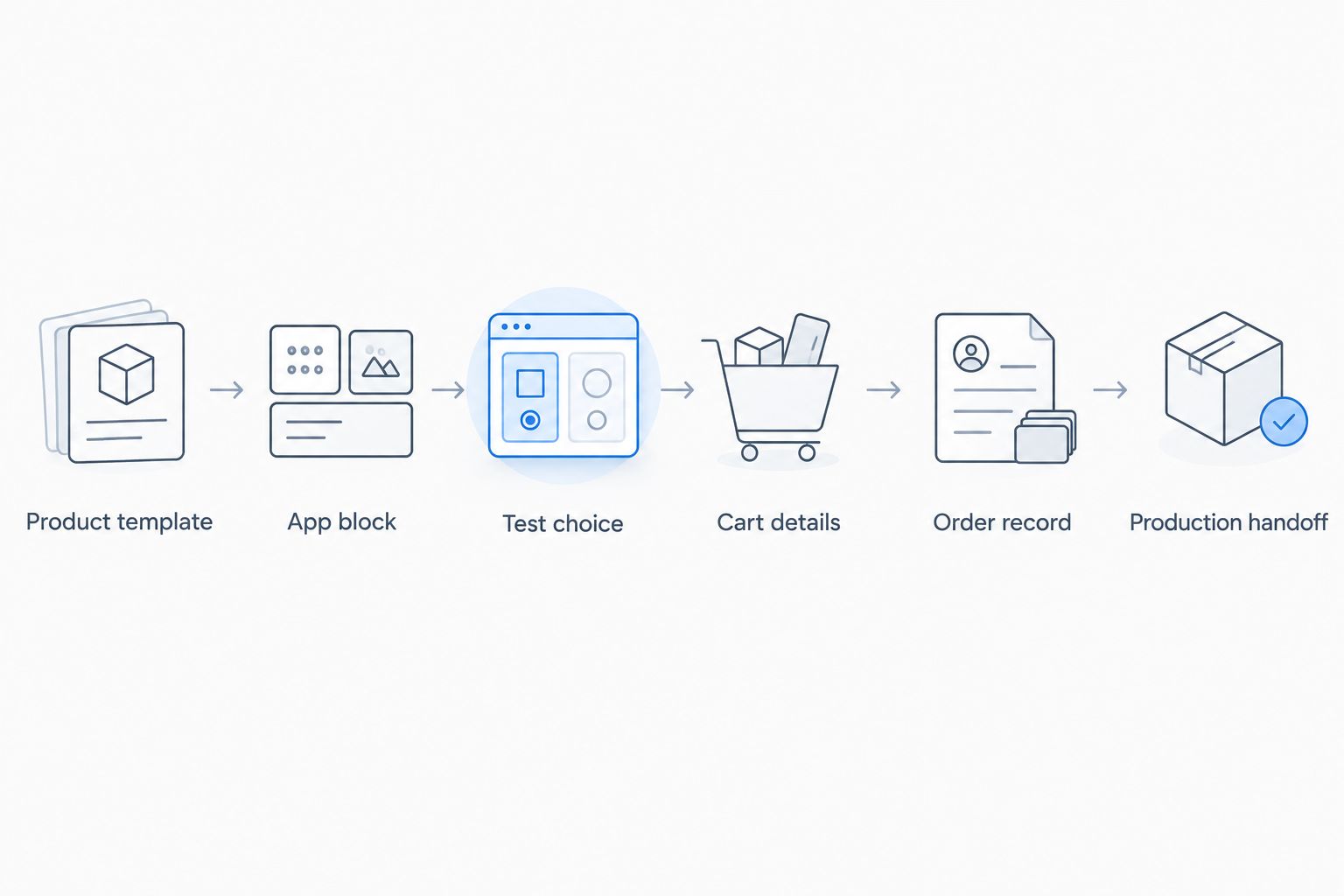
The test passes only when the shopper’s choice reaches the place your team uses to fulfil the order.
Bespo is best for Shopify merchants who need live-preview personalisation and production-ready files without developer involvement. Its stated setup uses an app embed and customisation block, so those are the first storefront elements to check after a theme change. The trade-off is that a working app configuration does not replace a purchase-path test on each theme you publish.
Check your personalisation setup
Review the app embed, customisation block and order handoff before publishing a new theme.
Why personalisation data failures vary
The risk depends on how the storefront collects a choice and where that choice must appear next. Use these factors to decide which tests matter most:
- Theme configuration: App embeds, blocks and product templates need to be checked in the replacement theme. A working live theme is not proof that the new theme has the same setup.
- Product-page layout: Different templates can place the customiser in different parts of the page. Test each layout that customers use.
- Cart behaviour: A theme’s cart drawer and full cart are different shopper paths. Check the path your store presents after add-to-cart.
- Personalisation method: Text, selected options and uploaded artwork create different things to verify. A successful text test does not validate a file-upload path.
- Production workflow: The order record and the file used for fulfilment are separate checkpoints. Confirm both when your team relies on both.
- Storage location: Shopify order details, theme code and app-managed records serve different purposes. Identify where the missing detail should have been saved before attempting a fix.
For Bespo personalisation, pay particular attention to the live-preview experience and the production-ready file. Both are part of the stated product workflow. A preview that works without the required order output is not a successful migration.
How do you tell a display problem from missing order data?
Open the order first. If the personalisation detail is present there but absent from the new product page, investigate the replacement theme’s display and configuration. If a newly placed test order has no detail, trace the choice through product page, cart and checkout to find where it stopped.
Do not edit a customer’s existing order based only on what the new storefront shows. The storefront describes what a shopper can currently enter; the order record shows what was captured for that purchase. Check the original order before treating the data as missing.
If your team uses an app record or production file, open that too. The order can contain a selected option while the file needed to produce the item is unavailable. Record each checkpoint separately so the fix addresses the failed handoff.
Will switching back to the old theme restore missing choices?
Switching back can restore a storefront component that worked in the old theme, but it does not recreate a choice that was never captured. Check the old theme’s behaviour in preview, then inspect the affected cart or order. Keep the diagnosis tied to where the data disappeared.
For a live issue, stop treating the replacement theme as ready. Use the known working purchase path while you correct the new theme, and test again before publishing it. A visual fix alone is not enough: the next test choice must reach the order and production workflow.
Do existing personalised orders disappear after a theme update?
A theme update does not, by itself, show that existing personalised orders were deleted. Open an order from before the change and inspect the details actually recorded with it. If fulfilment also depends on an app-managed file, check that file separately.
Avoid assuming that every personalisation input is stored in the same place. The reliable answer for your store comes from checking the order and its associated production record, not from checking whether the current product page still displays the field.
FAQ
Can personalisation data be lost during a Shopify theme update?
Yes, a theme update can break the capture or display of new personalisation choices. It does not, by itself, prove that existing Shopify orders were deleted.
Does a Shopify theme update delete personalised orders?
A theme update alone does not establish that past orders have been deleted. Open an existing order and check its recorded personalisation details before diagnosing data loss.
Why did my customisation field disappear after changing themes?
Check whether the replacement theme has the required app embed, customisation block and product template. A field present in the old theme should not be assumed to appear in the new one.
How can I test whether personalisation details reach a Shopify order?
Enter a test choice, add the product to cart, complete a test order and inspect the order details. Check the production file as well if fulfilment depends on one.
Is a working live preview enough to confirm my theme update is safe?
No. A working preview shows what the shopper sees, not what the order captures. Confirm the choice in the cart, order and production handoff.
Will changing back to my old theme recover a missing customer choice?
Changing back can restore a working storefront component, but it cannot recreate a choice that was never submitted. Inspect the affected order and any app-managed record to determine what was captured.
Should I test every personalised product after a theme update?
Test every distinct product template and personalisation method your store uses. A successful text-field order does not verify an upload field or a different template.
One last thing
The strongest theme-update test is not whether the customiser loads. It is whether a new shopper choice reaches the exact record or file your production team uses. In 2026, make that the publish criterion for Bespo or any other Shopify personalisation setup.