
The blog
Small Shopify Store Customizer: Not Necessary in 2026


No, a product customizer is not necessary for every small Shopify store in 2026. If you sell fixed products or only need a short name or message, a simple input can be enough. Add a customizer when shoppers need to see their choices before ordering or when your team needs those choices turned into production files.
TL;DR
- Is a product customizer necessary for a small Shopify store? No—not for fixed products or simple text requests.
- Use a basic input when shoppers only need to submit a name, initials or short message.
- Bespo is best for Shopify merchants who need live personalisation previews and production-ready files; setup still takes work.
- In 2026, test the order handoff before adding more choices to a product page.
Why this matters
A small store has little room for avoidable order questions. If a shopper types initials but cannot tell where they will appear, someone must check the request before production. If the request is already clear to the shopper and your fulfilment team, a visual customizer adds another step without solving a problem.
The decision is about the work each order creates, not the size of your store. A merchant selling a single engraved item can need a preview more than a larger store selling products with no personalisation. Start with the information your team needs to make the item correctly. For a straightforward name field, see how to add a name and initial field to Shopify product pages.
In 2026, choose the lightest setup that lets shoppers submit a clear request and lets your team act on it. You can expand it when the choices become harder to explain or fulfil.
Is a product customizer necessary for a small Shopify store?
Fixed product page
- Best for: Products with no buyer-selected details
- What works: No personalisation step to manage
- What you give up: Shoppers cannot specify a custom detail
Simple text input
- Best for: A name, initials or short message that needs no visual placement decision
- What works: Captures a straightforward request
- What you give up: The shopper does not see the finished placement; your team still needs to interpret the text
Manual request and follow-up
- Best for: Infrequent orders that need a conversation before production
- What works: Lets you resolve unusual requests directly
- What you give up: Each order needs a handoff, and the product page cannot show a finished preview
Bespo live-preview customizer
- Best for: Shopify products with visual choices and repeatable production requirements
- What works: Shows shoppers their personalisation and outputs production-ready files
- What you give up: You must configure the product and check that its choices match your production process
For most simple requests, start with a field, not a full customizer. If a customer selects a font, placement or technique, the decision changes. A live preview helps the shopper inspect the result, while a defined set of options gives your team an order it can act on.
Bespo is best for small Shopify stores that sell visual personalisation and need production-ready files. It is not the right starting point for a store that sells only fixed products or needs nothing beyond a short message. The app removes the need for developer involvement, but it does not decide which choices your product can support. You still have to define those choices and check the output.
When is a simple input enough?
Use a simple input when the customer's answer is the complete instruction. A name for an item with a fixed position is a different job from a name that shoppers can move, resize or style. In the first case, the page needs to collect the text clearly. In the second, the page needs to show what those decisions produce.
Write the prompt as your production team would read it. Ask for the exact information required, set clear limits on what shoppers can enter, and review how the answer appears with the order. A vague request such as a note asking shoppers what they want leaves interpretation until after checkout. A specific field makes the handoff easier to check.
A text field also has a limit: it records an instruction, not an approved visual. If placement or appearance affects whether the buyer will accept the item, make that distinction clear before you choose the simpler setup.
When does a live preview earn its place?
Use a live preview when a shopper needs to judge appearance before ordering. Engraved text on jewellery, embroidery on apparel and a monogram on an accessory each present a visual question: what will the selected text look like on this item? A written field alone cannot answer it.
The preview also needs to match the choices your team can produce. Do not show an option merely because it looks useful on screen. If a shopper selects it, the order must carry an instruction that fulfilment can follow. A preview earns its place when it clarifies both the purchase and the production handoff.
For a small store in 2026, this matters more than building a large menu of effects. Start with the personalisation you can explain, preview and fulfil consistently. Add another choice only after you know how it will appear to shoppers and how your team will receive it.
Why the answer varies
- Product complexity. A fixed design with a short name has fewer decisions to show than an item with selectable placement, text style and technique.
- Need for visual approval. If shoppers must judge how their choices look together, a text field does not provide that view.
- Production handoff. If your team repeatedly turns order notes into artwork or instructions, a customizer that outputs production-ready files addresses that step.
- Order frequency. A manual conversation is workable when requests are occasional. Repeating the same conversation for every personalised order creates routine work.
- Merchant capacity. A small team still has to configure options, check outputs and maintain the product page. Choose a setup the team can keep accurate.
These factors do not produce a universal store-size threshold. They give you a practical test: follow one order from the product page through fulfilment. If the request is clear at every handoff, keep the simpler setup. If someone must ask the shopper what they meant or rebuild the same production file each time, change the process.
How to decide for your store in 2026
1. Choose a product
Pick one product you already sell or intend to personalise. Do not design a store-wide customizer before you understand that product's request. Write down what the shopper can change and what must stay fixed. Separate a short text entry from a decision that changes the product's appearance.
If the only variable is a name in a predetermined position, start by testing a field. If the shopper must choose how that name appears, include that decision in the test. This keeps the question focused: you are deciding how to sell this product, not committing your whole catalogue to one interface.
2. Map the choices
List the decisions in the order a shopper should make them. Ask whether each choice needs an image to make sense. A field asking for initials is easy to read; a combination of initials, font and placement is harder to judge without a preview.
Keep the page tied to real production choices. If two options result in the same instruction for your team, question whether shoppers need both. If a choice cannot be fulfilled, remove it before it reaches the storefront. A shorter, accurate set of options is easier for a shopper to complete and for a merchant to maintain.
3. Check production
Look at the information your team receives after an order. Can someone make the item from that record without asking another person to interpret it? For a text-only product, the answer might be yes. For engraving, embroidery or print with visual placement, the team may need a production file as well as the selected options.
This is where Bespo addresses a specific job: it pairs a live-preview customiser with production-ready file output. That is useful when the preview and the fulfilment instruction both matter. It does not replace your responsibility to check that the options you publish reflect what you can make.
4. Test an order
Complete the product page as a shopper would, then read the resulting request as a fulfilment instruction. Check for missing text, unclear placement and choices that conflict. Make sure the shopper-facing preview, if you use one, represents the option your team will produce.
Repeat the test whenever you change a personalisation option. In 2026, the right setup is the one that stays clear after the product page changes—not merely the one that looks clear at launch. If the simple field passes this test, keep it. If the same ambiguity keeps returning, add the interface and handoff needed to remove it.
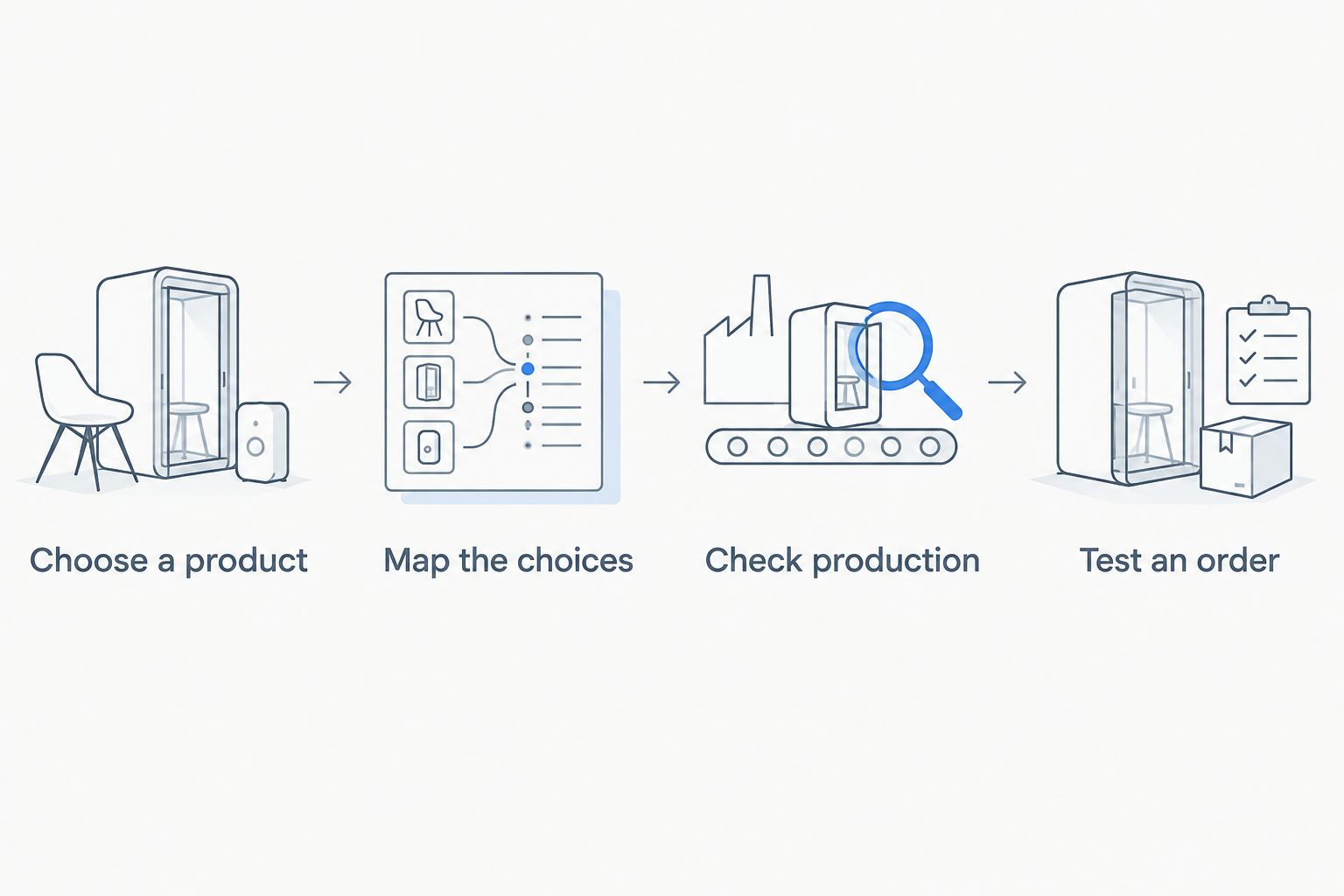
Follow one order from the product page to production before adding more options.
The test also exposes a common mismatch: a product page can collect every choice yet still leave the maker guessing. Check both sides. The shopper needs to understand what they are buying; your team needs to understand what to produce.
Set up product personalisation
Show shoppers their choices and prepare files for fulfilment.
Can a small Shopify store start without a customizer?
Yes. A small Shopify store can start with fixed products, a simple input or a manual request process when those approaches capture everything needed to fulfil the order. Do not add a visual tool until the product presents a visual choice or the order handoff needs more structure.
That is a starting decision, not a permanent restriction. Review it when you add personalisation techniques or find yourself clarifying the same request after checkout. Change the page to solve that specific gap rather than adding features in anticipation of one.
Is a text field enough for personalised products?
A text field is enough when the entered text is the full production instruction and its appearance is fixed. It is not enough when the shopper must decide how the result looks. In that case, use a preview that shows the relevant choices and check that those choices reach fulfilment clearly.
The distinction protects a small team's time. Collecting a name is simple; interpreting a customer's intended layout from an open-ended message is not. Keep the request narrow when the product allows it.
Does a live preview replace checking personalised orders?
No. A live preview shows the shopper the configured result, but you still need to check that the available choices and production output match the item you make. Test an order after setup and after any change to the product's options. A clearer screen is useful only when the instruction behind it is clear too.
FAQ
Is a product customizer necessary for a small Shopify store in 2026?
No. A small Shopify store needs a customizer when shoppers must see visual choices or the team needs a clearer production handoff; fixed products and simple text requests do not require one.
What's the simplest way to collect a customer's name on a Shopify product?
Use a clearly labelled text input when the name is the complete instruction. Check that the entered text reaches the order in a form your team can use.
Should I use a live preview for engraved products?
Use a live preview when shoppers need to judge how the engraving will appear. If placement and appearance are fixed and only the text changes, a simple input can be sufficient.
Can I offer Shopify personalisation without hiring a developer?
Yes. Bespo is a Shopify personalisation app that does not require developer involvement. You still need to set up the product choices and check the resulting order.
Is Bespo right for a store that only collects short messages?
A basic input is the better starting point if a short message is the entire request. Bespo fits products that need a live preview and production-ready files.
How do I know whether a customizer improves my order process?
Follow a test order from the product page to fulfilment. The setup works when the shopper can understand the result and your team can produce it without interpreting missing choices.
Do I need a customizer for every product in my store?
No. Decide product by product. Use a customizer where visual decisions or production requirements call for one, and keep simpler products simple.
One last thing
Do not judge a customizer only by the storefront preview. Read the order your maker receives. If that instruction is incomplete, the attractive preview has not solved the merchant's problem. For a small store in 2026, the best personalisation setup is the one that makes the shopper's choice clear on both sides of checkout.