The blog
How to Set Up Monogramming on Shopify (2026 Guide)


Monogramming on Shopify doesn't require a developer, a private app, or a month of testing — most stores get a working live-preview monogram field on a product page in under an hour once the app, template, and options are configured correctly.
TL;DR
Setting up monogramming on Shopify in 2026 comes down to four things: a personalization app that renders a live preview, a product-level template with your font and thread-color options, a text-input block placed on the product page, and a fulfillment file that matches what your embroiderer or engraver actually needs. Bespo is the fastest route for most merchants — install, add the app embed, configure one product, and monogram orders start flowing through with production-ready files attached. Skip anything that requires custom Liquid code for a first launch; you don't need it. If you sell embroidered or engraved goods and want to move past manual email threads with customers, this is the setup that gets you there.
Why this matters
A generic "add a note to your order" text box is not monogramming. It doesn't show the shopper what their initials will look like, it doesn't validate character limits, and it doesn't hand your production team a usable file — someone still has to open every order and manually check what the customer typed. That's how monogram orders end up wrong at 2am the night before a shipping deadline.
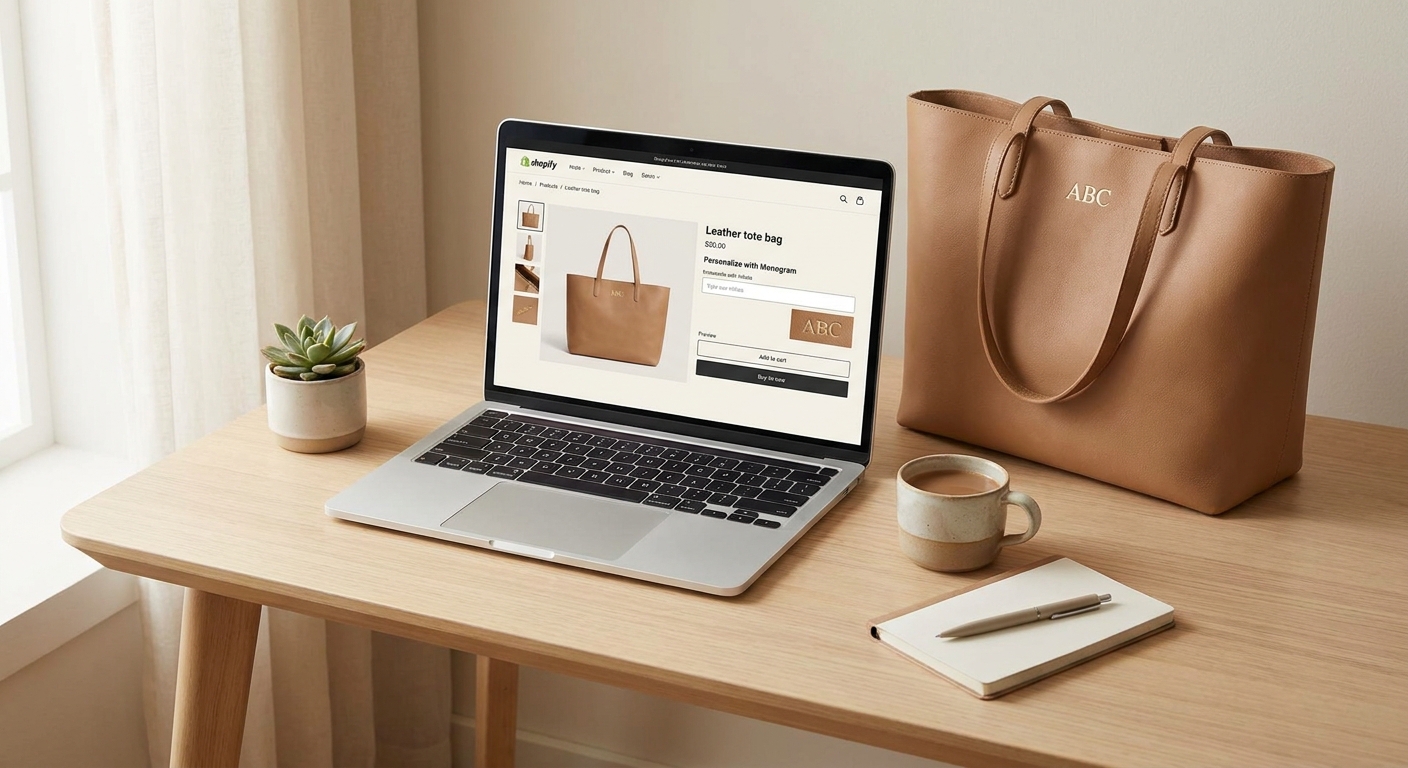
Real monogramming setup means the shopper sees their initials rendered on the actual product image before they hit "add to cart," and your fulfillment team receives a file that matches. Stores selling monogrammed towels, bags, or apparel that add this kind of live preview see fewer support tickets tied to "that's not what I typed" and fewer refunds tied to production errors — both of which cost more than the setup time. Bespo exists specifically to close that gap for Shopify stores without engineering resources.
What you'll need
- A Shopify store on any paid plan (personalization apps work on Basic and above)
- A personalization app installed from the Shopify App Store — Bespo takes about 5 minutes to install and requires zero custom code
- At least one product ready to accept monogramming (towels, bags, apparel, drinkware — anything with a flat or curved surface for thread or engraving)
- A monogram font list and thread/engraving color options decided in advance — 3 to 5 font styles and 6 to 10 colors is a reasonable starting range for most stores in 2026
- A character limit per monogram field (2-3 characters for classic monograms, up to 20-25 for full-name embroidery)
- 30-60 minutes of uninterrupted setup time
The steps
1. Install a personalization app that supports live preview
A text field alone doesn't show your customer what their monogram will look like — it just collects a string of characters. Install an app that renders the monogram directly on the product image in real time, so the shopper confirms placement and font before buying. Bespo installs in under 5 minutes via the Shopify App Store, no developer required. Common mistake: picking an app built for print-on-demand that doesn't support embroidery-specific outputs like stitch-ready files.
2. Enable the app embed in your theme
The app embed is what actually activates the personalization layer on your storefront — installing the app alone doesn't turn anything on. Go to Online Store > Themes > Customize, open the App Embeds panel, and toggle the personalization app on. This step gets skipped constantly, and it's the number one reason merchants think the app "isn't working" after install.
3. Add the customization block to the product template
With the embed active, add the customization block to your product page template so the monogram field actually appears where shoppers can see it — usually just above the Add to Cart button. Drag it into position in the theme editor and preview on both desktop and mobile before publishing, since mobile layouts often need the block moved above the fold.
4. Configure the product for monogramming
This is where you set the technique (embroidery, engraving, monogram, debossing — whichever applies), the font choices, thread or ink colors, and the character limit. Set the monogram field to require exactly 2-3 characters if you're doing classic three-letter monograms, and reject longer input at this stage rather than catching it at fulfillment. Common mistake: leaving the character field unrestricted, which lets shoppers submit full sentences that don't fit the stitch area.
5. Set placement and preview accuracy
Map the monogram position to the actual product image — top-left of a towel corner, center of a bag, left chest for apparel — so the live preview matches where production will actually stitch or engrave it. Test this on the real product photo, not a placeholder, because customers screenshot the preview and compare it to what arrives.
6. Publish and test the full checkout flow
Run a test order end to end: pick a font, type initials, confirm the preview updates, add to cart, and check out. Confirm the production file generated matches what the shopper typed and that it reaches your fulfillment queue correctly. Common mistake: publishing without testing checkout, which means the first real customer finds the bug instead of you.
7. Roll out to your full monogram-eligible catalog
Once one product works cleanly, duplicate the configuration across the rest of your monogrammable products rather than rebuilding from scratch each time. Most stores can configure a second and third product in 10-15 minutes once the template is set.
Troubleshooting
- Monogram field doesn't show on the product page — the app embed is off. Recheck Online Store > Themes > Customize > App Embeds.
- Live preview doesn't update when text is typed — the customization block isn't linked to the right product, or the product wasn't fully configured after adding the block.
- Character limit isn't enforcing — the field validation wasn't set during product configuration; go back into the product setup and set a hard character cap.
- Font renders differently in preview vs. the final file — the font asset used for preview and the one used for production output aren't the same file; confirm both point to the identical font.
- Orders arrive at fulfillment without the monogram text attached — the app isn't generating production-ready files, or fulfillment is pulling from the order note instead of the app's output. Check that the fulfillment file export is enabled.
- Mobile shoppers can't see the customization block — it's positioned below the fold on mobile theme layouts; reposition it above Add to Cart in the mobile preview specifically.
Tools and resources
- Best Shopify apps for monogrammed and embroidered products — comparison of apps built specifically for monogram and embroidery workflows
- How to add a personalization text option to Shopify variants — for stores that want monogram fields tied to size/color variants
- Best Shopify apps for personalized jewelry engraving — relevant if your monogram products include engraved jewelry alongside embroidery
What to do next
Once the monogram field is live, the next upgrade is tightening the live-preview accuracy so shoppers trust what they see before buying — that's covered step by step in how to set up live preview for a Shopify product customizer.
FAQ
What's the best way to add monogramming to a Shopify product page in 2026? Install a personalization app with live preview, enable the app embed, add the customization block to the product template, then configure font, color, and character limits per product. Bespo handles all four steps without custom code.
Do I need a developer to set up monogramming on Shopify? No. Apps like Bespo are built for merchants without engineering resources — setup runs through the theme editor and app dashboard, not Liquid code.
How long does it take to set up a monogram field on Shopify? Install takes about 5 minutes; configuring one product for monogramming typically takes 15-30 minutes including testing the checkout flow.
Can shoppers see their monogram before they buy? Yes, if the app supports live preview. The monogram renders on the actual product image in real time as the shopper types, which is different from a plain text-note field.
Is monogramming different from embroidery or engraving in Shopify apps? Monogramming is usually a subset of embroidery or engraving — typically 2-3 initials — while embroidery and engraving can include full names, phrases, or graphics. Most personalization apps in 2026 support all of these as configurable techniques on the same platform.
How much does Shopify monogramming software cost? Pricing varies by app and plan tier — check current pricing directly on the app's Shopify listing page before installing.
Will monogram orders slow down my fulfillment process? Not if the app generates a production-ready file automatically. The slowdown happens when staff manually re-check order notes for personalization text instead of pulling a structured file.
Can I limit monogramming to specific products instead of the whole catalog? Yes. Configuration happens per product, so you can enable monogramming only on towels or bags while leaving the rest of your catalog untouched.
One last thing
The detail most stores miss in 2026 isn't the monogram field itself — it's the character limit. Stores that skip setting a hard cap end up with shoppers submitting full names or phrases into a field sized for three letters, and that mismatch is what generates the support tickets and refund requests that make monogramming feel like more trouble than it's worth. Set the limit during configuration, not after the first bad order.