The blog
Shopify Personalization for Pop Up Retail: 2026 Setup Guide


Pop-up shops give shoppers a live-preview experience they can't get from a product photo, but the setup has to survive foot traffic, spotty venue Wi-Fi, and a staff member who didn't build the store theme. This guide walks through getting shopify personalization for pop up retail working on a tablet or laptop before the first customer walks in.
TL;DR
- Bespo runs live-preview embroidery, engraving or monogram personalization on any tablet or laptop for pop-up retail events in 2026.
- Preload templates and test offline fallback before doors open — venue Wi-Fi drops mid-event more than merchants expect.
- Sync personalized orders to the fulfillment queue after the event closes, not while the line is still moving.
- Verdict: Bespo plus Shopify POS handles shopify personalization for pop up retail without a developer or a second checkout system.
Why this matters
A pop-up event compresses a week of storefront traffic into a few hours. If the personalization step takes 90 seconds per customer instead of 20, the line backs up and people walk. Bespo exists to keep that live-preview step fast on a normal storefront — the same logic applies at a booth, just with a smaller screen and a worse internet connection.
Merchants running embroidery, engraving or monogram products at markets and trade shows in 2026 report the same three failure points: slow template loading, no offline mode, and staff who don't know how to override a typo before it goes to production. Fix those three and the event runs itself.
What you'll need
- A tablet or laptop with the Bespo customizer loaded and tested on the venue's actual internet speed, not just office Wi-Fi
- Your top 3-5 personalization templates preloaded — full catalogs slow down load time on mobile networks
- A backup connection (phone hotspot) in case venue Wi-Fi drops
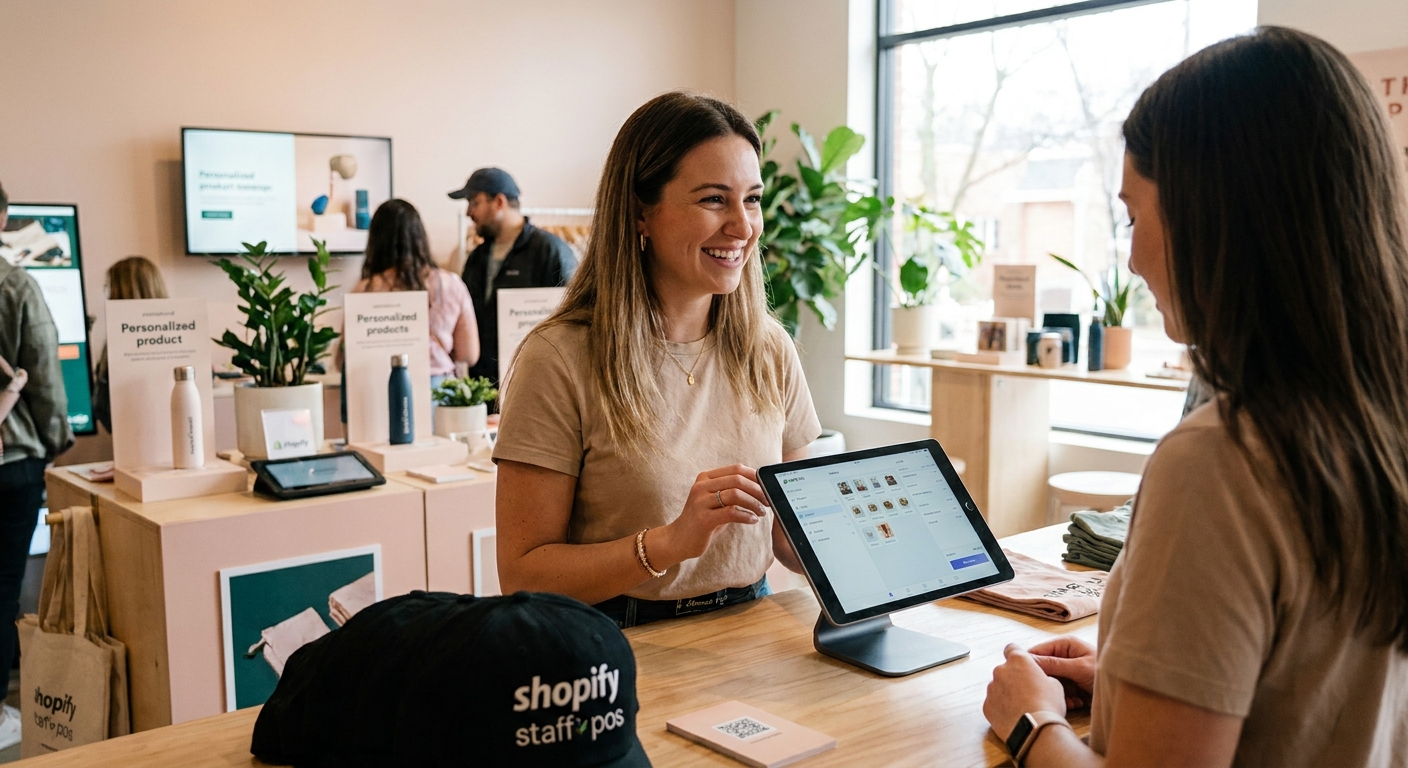
- Shopify POS set up on the same device or a paired device
- A staff member briefed on how to edit or cancel a personalization before checkout
- A charging cable and a portable battery — events run 6-8 hours and screens stay on the whole time
The steps
1. Trim the product list to event-ready SKUs
Running your full catalog at a booth slows load time and confuses staff who don't know every variant. Cut the list to 3-5 personalization templates that cover 80% of what you expect to sell — a monogram tumbler, an engraved keychain, a name necklace. Test each one loads in under 3 seconds on the device you're bringing, not your office desktop.
Common mistake: bringing the same product list you run online. Pop-up customers browse fast and decide fast; too many options is the number one reason lines stall.
2. Set up live preview on the device you're actually bringing
Live preview is the whole reason a customer stops at your booth instead of scrolling past. Confirm the customizer renders correctly on the exact tablet model you'll use — screen size and browser version both affect how live preview loads fonts and colors. A preview that looks sharp on a 27-inch monitor can crop text on a 10-inch tablet.
Expected outcome: a customer types a name, sees it rendered on the product in under 2 seconds, and can adjust font or color without staff intervention.
3. Test the mobile preview path end to end
Many pop-up setups run the whole transaction on a phone or small tablet rather than a full POS terminal. Walk through mobile preview exactly as a customer would: pick product, enter text, preview, add to cart, checkout. Do this on the actual device and actual browser before the event, not the week before on a different phone.
Common mistake: testing on iOS Safari and running the event on an Android tablet with a different browser engine. Text wrapping and font rendering differ enough to cause visible errors.
4. Add personalization to your POS checkout flow
If you're processing sales through Shopify POS at the booth, personalization has to carry through to that checkout, not just the online storefront. Confirm the personalization data flows into POS so the engraving text or monogram initials show up on the order, not just a generic line item.
Expected outcome: the order confirmation and packing slip both show the exact personalization text the customer entered, with no manual re-entry by staff.
5. Build an offline fallback
Venue Wi-Fi fails more often than home or office connections — shared bandwidth across dozens of vendors is common at markets and trade shows. Set up a phone hotspot as backup and test the failover before the event starts, not after the connection drops with a line of customers waiting.
Common mistake: assuming the venue's advertised Wi-Fi speed matches reality. Test it the morning of, at the actual booth location, with other vendors' devices also connected.
6. Brief staff on error correction
A typo in an engraving order costs materials and time to fix after the fact. Train whoever runs the booth to double-check the preview screen with the customer before hitting confirm — out loud, letter by letter for names. This single habit cuts personalization errors more than any software feature.
Expected outcome: zero re-orders from misspelled names, which at $15-30 in wasted materials per error adds up fast across a full event day.
7. Route orders to fulfillment after the event, not during
Don't try to fulfill personalized orders in real time at the booth unless you're running an on-site engraving or embroidery machine. Batch everything and sync it to your fulfillment queue once the event closes, so production files get generated in one clean pass instead of piecemeal throughout the day.
Common mistake: manually re-typing personalization details into a production spreadsheet after the event. That's where transcription errors creep in — let the export handle it.
Set up pop-up personalization in a day
5-minute install, live preview built in, no developer needed.
Troubleshooting
- Preview loads slowly or freezes on tablet: Cut the template list further — 3 templates load faster than 8. Close other apps running on the device to free up memory.
- Text wraps incorrectly on the product mockup: Test the exact font and character limit on the device you're using before the event; some fonts render differently on mobile browsers than desktop.
- Wi-Fi drops mid-transaction: Switch to the phone hotspot immediately and keep a paper backlog of the last 2-3 orders in progress so nothing gets lost.
- Staff enters personalization text with a typo: Build the double-check-out-loud habit into step 6 above — this is a training fix, not a software fix.
- Customer wants a product not in your preloaded set: Have a printed card with a QR code linking to the full online store so they can order from home instead of holding up the line.
- POS order doesn't show the personalization text: Confirm the app embed and POS integration were tested in step 4 — this usually means the sync wasn't verified before the event started.
Tools and resources
- Bespo's live-preview customizer for real-time embroidery, engraving and monogram rendering
- A tested offline fallback (phone hotspot)
- Shopify POS configured to carry personalization data through checkout
- For merchants running multiple events a month, high-volume personalization setups are worth reviewing before the busy season
What to do next
Once the event wraps, the real work is getting personalized orders into production without errors. Review your export and fulfillment routing before the next event so the queue doesn't back up.
FAQ
What's the best way to run shopify personalization for pop up retail events?
Load a live-preview customizer like Bespo on the tablet or laptop you're bringing, preload 3-5 templates, and test the connection at the venue before doors open. Full catalogs and untested Wi-Fi are the two most common failure points in 2026 pop-up setups.
Do I need internet access for personalization at a pop-up event?
Yes, live preview and checkout both require a connection, so bring a phone hotspot as backup. Venue Wi-Fi at markets and trade shows is often shared across dozens of vendors and drops more than expected.
Can Shopify POS handle personalized orders at events?
Shopify POS can carry personalization text through to checkout and the packing slip when the app embed is configured correctly. Test this end to end before the event, since a missing sync means staff have to re-enter details manually.
How many personalization templates should I bring to a pop-up?
Limit the list to 3-5 templates that cover your top sellers rather than the full online catalog. Fewer options load faster on mobile devices and keep the checkout line moving.
How much does personalized product error correction cost at events?
A misspelled name or wrong initial typically costs $15-30 in wasted materials plus the time to redo it. Having staff verbally confirm text with the customer before checkout eliminates most of these errors.
When should personalized pop-up orders go to fulfillment?
Batch orders and sync them to the fulfillment queue after the event closes rather than processing each one live at the booth. This produces clean production files in one pass instead of piecemeal exports.
Is mobile preview reliable enough for in-person events?
Mobile preview works for pop-up retail when tested on the exact device and browser you're bringing, not a different phone from a week earlier. Font rendering and text wrapping vary enough between browsers to cause visible mismatches.
What happens if Wi-Fi drops during a pop-up sale?
Switch immediately to a phone hotspot and keep a short paper backlog of in-progress orders so nothing gets lost. Testing this failover before the event starts prevents a stalled line when the connection actually drops.
One last thing
The single biggest cost at a pop-up isn't the booth fee or the travel — it's a slow preview screen creating a line that customers abandon. Test load speed on the actual device you're bringing, at the actual venue, the morning of the event. That ten-minute check saves more sales than any extra template you could add.