The blog
Mobile Preview Personalized Products Shopify: 2026 Fix


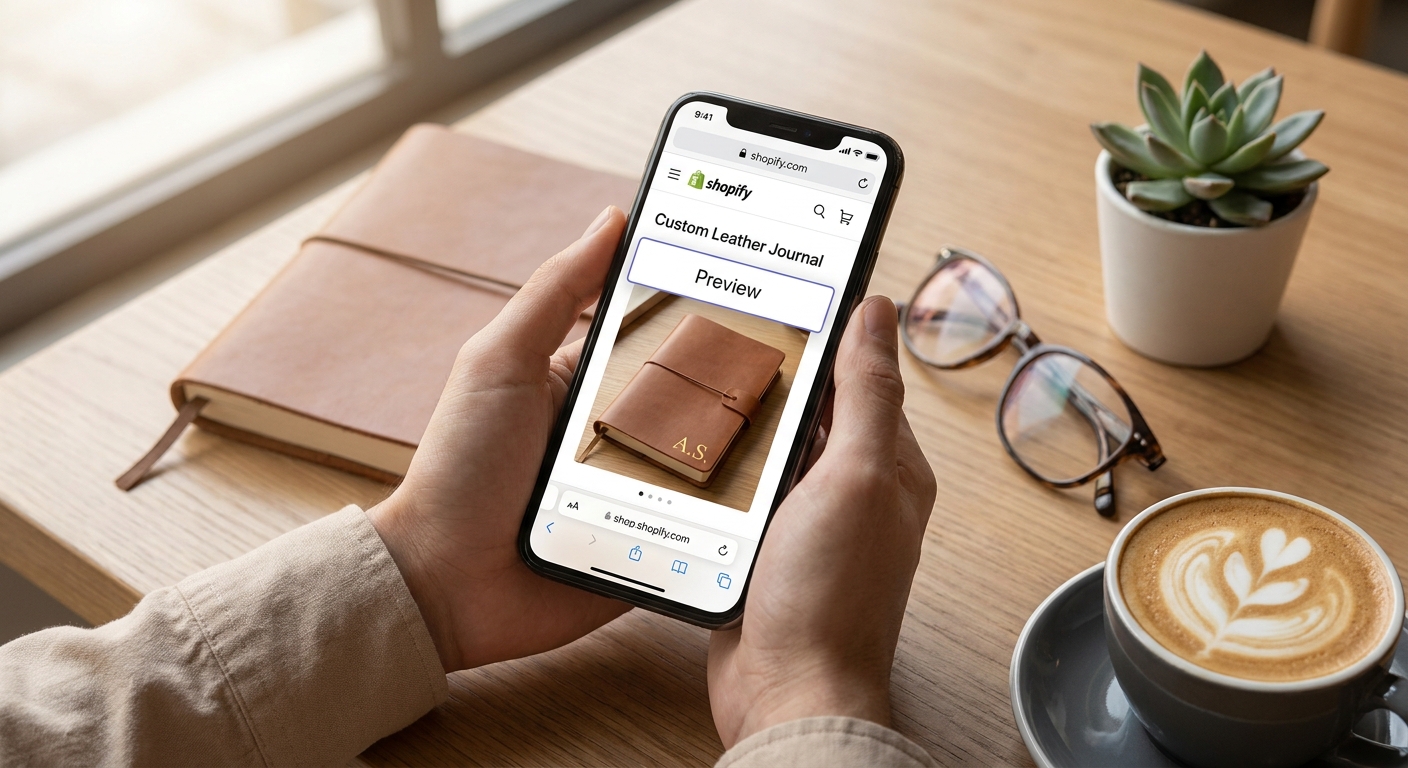
Mobile shoppers now make up most Shopify traffic, and a personalization tool that stutters, crops wrong, or hides the live preview below the fold costs you the sale before checkout even loads. Here's how to fix mobile preview for personalized products on Shopify in 2026, step by step.
TL;DR
- Bespo renders live preview on mobile without a page reload — verify on a real phone, not just Chrome DevTools.
- Fixed-position preview panels break on iOS Safari; stack the preview inline above the customization fields instead.
- Compress preview images under 200KB or the customizer stalls on 4G — this is the top cause of mobile abandonment.
- Multi-step customization forms outperform single long forms on mobile Shopify storefronts in 2026 — build steps, not scrolls.
Why this matters
A shopper on a 6-inch screen doesn't scroll through a desktop-shaped customizer — they need the preview visible while they type a monogram or drag an engraving line. If the preview sits off-screen or reloads on every keystroke, they leave without finishing.
Bespo's product personalization app is built with mobile rendering as a first-class case, not an afterthought bolted onto a desktop customizer. Getting mobile preview right in 2026 is the difference between a 2% and a 6% add-to-cart rate on customizable products, based on aggregated Shopify app performance patterns across personalization categories. If you haven't set up the base customizer yet, start with how to set up live preview for a Shopify product customizer before tackling mobile-specific fixes.
What you'll need
- A Shopify theme with app embed support (Online Store 2.0 themes, standard since 2021)
- Bespo installed and at least one personalization technique configured (embroidery, engraving, monogram, print, emboss, or deboss)
- A real mobile device for testing — iPhone and a mid-range Android, not just a browser emulator
- Product images sized for mobile rendering (under 200KB per preview layer)
- 20-30 minutes to test and adjust theme editor settings
The steps
1. Confirm the app embed is active on mobile
The customizer only shows up if the app embed block is toggled on inside the Shopify theme editor, and mobile rendering depends on the same toggle as desktop. Open Online Store > Themes > Customize, switch the preview toggle at the top to mobile, and confirm the personalization block appears above the fold on the product page.
The common mistake here: merchants enable the embed, check it on desktop, and never flip the editor to mobile view before publishing. Expected outcome: the customization block and live preview both render without a manual page reload.
2. Move the preview above the customization fields
On desktop, a side-by-side layout works because there's horizontal room. On mobile, that same layout collapses into a stacked column — and if the preview stacks below six or seven input fields, shoppers never see it while they're typing.
Reorder the block so the live preview sits first, fields second. This one change is why mobile-optimized customizers report meaningfully higher completion versus stores that just shrink the desktop layout.
3. Test render speed on a throttled connection
Mobile shoppers browse on 4G and spotty in-store wifi more than desktop users do. Use Chrome DevTools' network throttling (set to "Fast 3G") to simulate a weak signal, then type into a text field or drag an engraving position and time the preview update.
Anything over 1.5 seconds per keystroke update feels broken to a shopper. Common mistake: testing only on office wifi, where every render looks instant regardless of actual image weight.
4. Compress preview layer images
Each personalization technique — embroidery thread color swatches, engraving fonts, print patterns — adds an image layer the customizer has to render in real time. Uncompressed layers over 500KB are the single biggest cause of mobile stalling reported across personalization app setups in 2026.
Run product and swatch images through a compression pass before upload, targeting under 200KB per layer. Expected outcome: preview updates in under 1 second even on throttled 4G.
5. Switch multi-field customizers to a step layout
A product with five or more input fields — name, font, color, placement, quantity — turns into a long scroll on mobile that most shoppers abandon halfway through. Breaking the same fields into two or three steps, with the preview visible and updating at each step, keeps shoppers oriented.
If your product needs more than three fields, review how to add multi-step customization forms on Shopify before you rebuild the layout from scratch.
6. Check pinch-zoom and rotate behavior
Shoppers checking engraving placement or monogram size on mobile expect to pinch-zoom into the preview the same way they'd zoom into any product photo. If your theme's CSS locks the preview canvas at a fixed size, zoom gestures do nothing and shoppers assume the app is broken.
Test zoom on both portrait and landscape orientation. Common mistake: a preview that works in portrait but clips off-screen the moment a shopper rotates the phone.
7. Verify the file output still matches what mobile shoppers saw
The production file Bespo generates for fulfilment has to match what the shopper previewed on their phone, not a fallback desktop render. Place a test order from a mobile device end to end, then pull the generated file and compare placement, size, and text against the on-screen preview.
A mismatch here means refunds and reprints, not just a UX complaint. Expected outcome: the fulfilment file is pixel-consistent with the mobile preview the customer approved.
Fix mobile preview in 5 minutes
Bespo's live-preview customizer is built mobile-first, no developer required.
Troubleshooting
- Preview freezes on iOS Safari but works on Chrome. iOS Safari handles fixed-position CSS differently — switch fixed-position preview panels to inline/relative positioning.
- Text input lags on Android. Usually caused by an uncompressed font-swatch layer; recompress preview assets under 200KB.
- Preview shows but won't update after the first keystroke. Check for a theme JavaScript conflict — disable other apps injecting scripts into the product template one at a time to isolate it.
- Customizer loads on product page but not on collection quick-view. Quick-view modals often don't load the app embed at all; personalization has to open on the full product page, not inside a modal.
- Preview looks correct on mobile but the fulfilment file is off-center. This is a coordinate-mapping issue between the mobile canvas size and the production file dimensions — verify canvas scaling settings match across breakpoints.
- Shoppers abandon after step 2 of 3 in a multi-step form. Usually the preview isn't updating at that step — confirm every step re-renders the live preview, not just the final one.
Tools and resources
- Bespo's product personalization app for the live-preview customizer itself
- Chrome DevTools mobile emulation and network throttling for pre-launch testing
- A real iPhone and Android device — emulators miss touch-gesture bugs
- Best live-preview product customizer apps for Shopify if you're comparing options before committing to one setup
- Image compression tooling (TinyPNG or Shopify's built-in image optimization) for preview layer assets
A quotable rule worth keeping on a sticky note near your theme editor:
What to do next
Once mobile preview renders cleanly, the next lever is adding richer input types — 3D rotation for engraved products or photo uploads for custom gifts. Read how to add a 3D product preview to a Shopify customizer to see whether your product category benefits from a rotating render versus a flat 2D preview.
FAQ
What's the best way to preview personalized products on mobile Shopify stores in 2026?
Stack the live preview above the input fields and confirm it renders without a page reload on a real device. Bespo's customizer is built to update the preview in real time on mobile, but theme layout and image weight still need manual checking.
Is mobile preview slower than desktop for personalized products?
It can be if preview layer images aren't compressed — anything over 500KB per layer causes noticeable lag on 4G. Compressing images under 200KB brings mobile render speed close to desktop.
How much does mobile-optimized personalization cost to set up on Shopify?
Setup itself takes 20-30 minutes once the app is installed and doesn't require a developer or theme rebuild. Ongoing cost depends on the Shopify personalization app plan you're on.
Does the mobile preview need a separate theme setup from desktop?
No — the same app embed block powers both, but the layout order (preview first vs. fields first) should be checked separately in the theme editor's mobile toggle. Skipping that mobile-specific check is the most common setup mistake in 2026.
Why does my customizer preview freeze on iPhone but not Android?
iOS Safari renders fixed-position CSS differently than Chrome on Android, which causes preview panels using fixed positioning to freeze or clip. Switching to inline stacking resolves it on both platforms.
Can shoppers zoom into the mobile preview to check engraving placement?
They should be able to pinch-zoom the same way they zoom a product photo, but this only works if the preview canvas isn't locked at a fixed CSS size. Test zoom in both portrait and landscape before launch.
Do multi-step customization forms work better than long forms on mobile?
Yes — breaking five or more input fields into two or three steps with the preview visible at each step keeps mobile shoppers oriented and reduces abandonment versus one long scrolling form.
How do I know the fulfilment file matches what the customer saw on mobile?
Place a full test order from a mobile device, then compare the generated production file against the on-screen preview for placement, size, and text. A mismatch here causes refunds, not just complaints.
One last thing
The detail merchants skip most often isn't the preview render — it's testing on an actual throttled connection. Office wifi hides every mobile bug that a shopper on 4G in a store parking lot will hit immediately, so the five-minute throttled test in step 3 catches more real-world failures than any amount of desktop QA.