The blog
Add a Size Guide to Shopify Personalization (2026)


Shoppers buying personalized apparel, bags, or accessories bail out fast when they can't tell whether a size will fit before they commit to a name, monogram, or engraving. Adding a size guide next to your Shopify personalization step closes that gap without slowing down the customization flow.
TL;DR
- Add a size guide link or modal beside the personalization block, not buried in the product description, to cut size-related returns in 2026.
- Use conditional logic so the size guide only shows for products where sizing actually varies, keeping simple items fast to customize.
- Bespo's live-preview customizer supports a size guide trigger placed directly above or beside the personalization fields.
- Test on mobile first: over half of Shopify personalization traffic in 2026 comes from phones, and cramped size charts kill conversion.
Why this matters
A size guide answers the fit question. A personalization block answers the customization question. When both live on the same page but never talk to each other, customers guess on size, commit to a monogram they can't undo, and then request a refund when the fit is wrong.
That combination — irreversible personalization plus a sizing mistake — is the single most common driver of returns on made-to-order apparel in 2026. A size guide placed right next to the customization step, not three scrolls down in the product description, fixes it before the order ever gets placed.
This matters more the more variants you sell. A brand running personalization for team and sports uniform stores or apparel brands on Shopify has both a size problem and a name/number problem stacked on the same product page. Get the sequencing wrong and customers abandon before they finish either step.
What you'll need
- A Shopify theme with an editable product template (Online Store 2.0 themes work best)
- Bespo installed and the personalization app embed enabled on your product pages
- A size chart — image, table, or existing Shopify page — for each product type that needs one
- 20-30 minutes for a single product template, longer if you're rolling this across multiple product types with different sizing logic
- Optional: conditional logic rules if only some variants need a size guide
The steps
1. Decide where the size guide sits relative to personalization
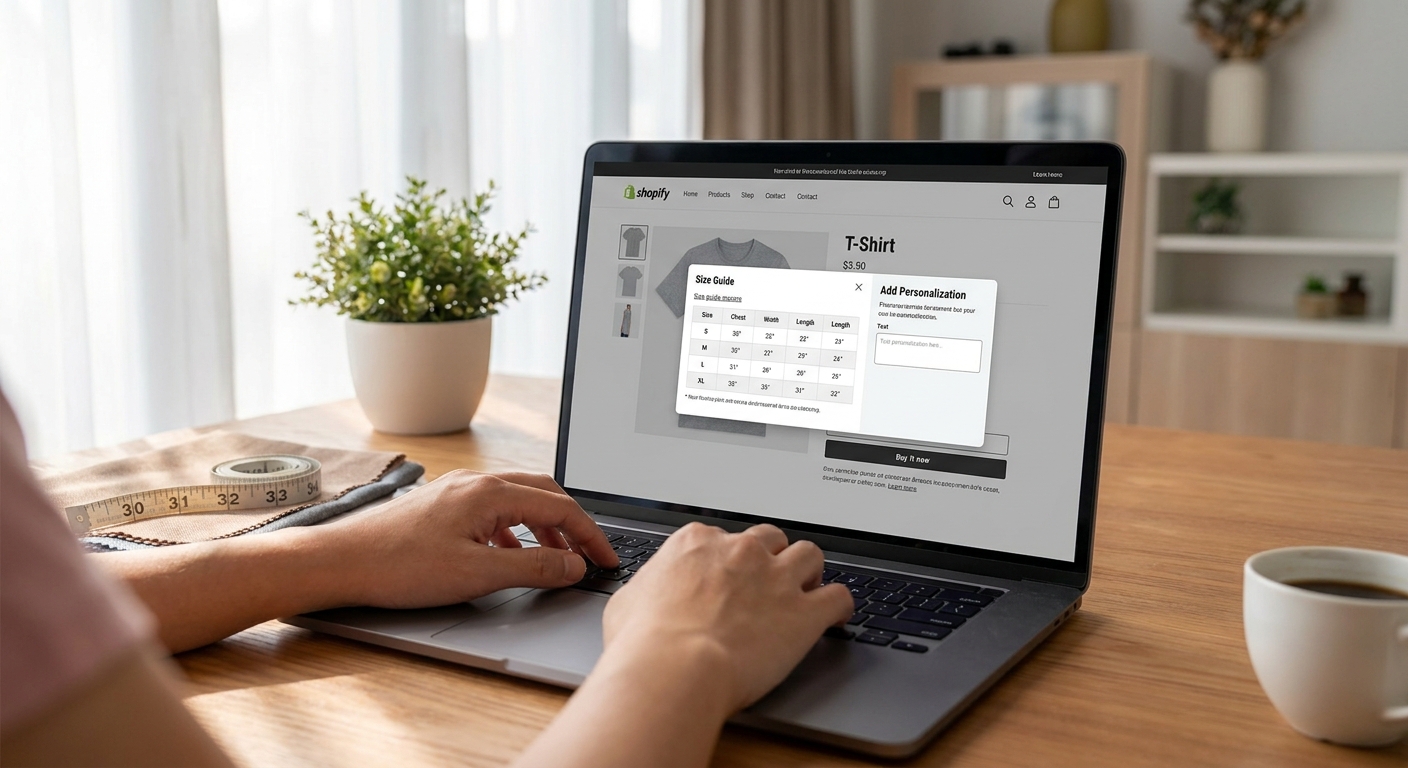
Put the size guide trigger above the personalization fields, not below. Customers pick a size first, then customize — reversing that order means they land on a monogram field before they know if the shirt fits, and they'll skip the size guide entirely because they're already focused on typing a name.
A simple text link ("Size guide") or a small icon next to the variant selector works better than a full paragraph. Keep it one tap away from the personalization block, ideally inside the same visible section so nobody scrolls to find it.
Common mistake: placing the size guide inside the product description tab. Fewer than half of mobile shoppers open description tabs before adding to cart — that's a size guide nobody sees.
2. Build or import your size chart content
If you already have a size chart page in Shopify, reuse it — don't rebuild it as a duplicate block. If you don't, build a simple table: size label, chest/waist measurement, and a fit note ("true to size", "runs small"). Keep it to one table per product type; multi-table charts for unrelated categories confuse more than they help.
For apparel specifically, include both inches and centimeters in 2026 storefronts serving international traffic — a size guide that only shows one unit loses non-US customers at exactly the moment they need reassurance.
3. Add the size guide as a modal or drawer trigger
Use a lightweight modal or slide-out drawer rather than an inline expand — inline expansion pushes the personalization fields further down the page and increases scroll depth before checkout. Most Shopify themes support a modal via a simple link with a data attribute, or a theme app block if you're using a size guide app.
Test that the modal closes cleanly and returns the shopper to the exact scroll position they were at. A size guide that dumps someone back at the top of the page after closing is a bigger conversion killer than not having one at all.
4. Sequence it with the personalization block using conditional logic
Not every product needs a size guide next to personalization — a monogrammed tumbler doesn't, a personalized hoodie does. Use conditional logic on your Shopify customization options so the size guide trigger only appears on products where sizing genuinely varies by fit or brand.
This keeps simple products fast to personalize while giving apparel, footwear, or fitted accessories the extra fit-confidence step they need. Expected outcome: customers on sized products spend a few extra seconds confirming fit, then move straight into the personalization fields without friction.
5. Turn the size guide into a step in a multi-step flow for complex products
If your product already asks for multiple personalization inputs — name, number, color, size — bundling the size guide as an early step inside a multi-step customization form keeps the whole sequence linear instead of scattering decisions across the page. Step 1: size, guide included inline. Step 2: personalization details. Step 3: live preview.
Common mistake: cramming size selection and personalization into a single step with no visual separation. Customers conflate the two and pick a size based on the monogram font size shown in the preview, not their actual measurements.
6. Verify the size guide renders correctly on mobile
Preview your size guide and personalization block together on an actual phone screen, not just the Shopify theme editor's mobile preview toggle. Modals with fixed-width tables often overflow horizontally on smaller screens, forcing sideways scrolling that most shoppers won't bother with.
Check this specifically using mobile storefront previews for personalized products before pushing the change live. A size guide that breaks on mobile in 2026, when mobile carries the majority of Shopify personalization sessions, costs more conversions than skipping the size guide entirely.
7. Publish and monitor return reasons for four weeks
Once live, track your return reason tags in Shopify admin for a full order cycle — typically 3-4 weeks for apparel. If "wrong size" returns on personalized products don't drop, the size guide placement or content is the problem, not the concept.
Add a size guide to your customizer
Set up live-preview personalization with sizing built into the flow.
Troubleshooting
- Size guide modal doesn't open on mobile: the trigger link often gets buried under the app embed's z-index. Raise the modal's stacking order in your theme's CSS or switch to a native theme app block.
- Customers still order the wrong size despite the guide: the chart may lack a fit note. Add "runs small" or "true to size" language directly next to the measurements table, not as a separate disclaimer.
- Size guide and personalization block visually collide on smaller screens: stack them vertically with clear spacing rather than side-by-side columns below 768px width.
- Returns tagged "wrong size" haven't dropped after launch: check whether the size guide actually shows before the personalization fields load, or whether it's rendering after — sequencing errors are the most common silent failure here.
- International customers ignore the size guide: confirm it shows both metric and imperial units; a single-unit chart reads as "not for me" to a large share of non-US shoppers.
- Size guide slows down page load on the customizer: compress size chart images or convert tables to lightweight HTML instead of embedded images.
Tools and resources
- Conditional logic for Shopify customization options — control when the size guide shows
- Multi-step customization forms on Shopify — sequence size and personalization cleanly
- Live preview setup for a Shopify product customizer — check how the size guide interacts with preview rendering
- Mobile storefront previews for personalized products — confirm mobile rendering before launch
- Shopify admin return reason tags — track fit-related returns after launch
FAQ
Where should a size guide go relative to a personalization block on Shopify?
Place the size guide trigger above the personalization fields so shoppers confirm fit before typing a name or monogram. Placing it below the customization block or inside the description tab gets skipped by most mobile shoppers in 2026.
Does every personalized product need a size guide?
No. Products without fit variance, like tumblers or keychains, don't need one. Use conditional logic so the size guide only appears on apparel, footwear, or other fitted items.
Will a size guide slow down my Shopify customizer?
A lightweight modal or drawer adds negligible load time if the chart uses HTML tables instead of large images. Heavy image-based size charts are the usual cause of slowdown.
How much do wrong-size returns cost on personalized orders?
Personalized items can't be resold once customized, so a wrong-size order is a full loss rather than a restockable return. That's why fit confirmation before personalization matters more here than on standard products.
Can I use my existing Shopify size chart page instead of building a new one?
Yes. Link your existing size chart into a modal trigger next to the personalization block rather than duplicating the content in a new format.
Should the size guide show metric and imperial units?
Yes, include both if you sell internationally. A single-unit chart reads as not built for that shopper and increases size-guide abandonment.
What's the most common mistake when adding a size guide to a personalizer?
Burying the size guide in the product description tab instead of next to the personalization fields. Fewer than half of mobile shoppers open description tabs before adding to cart.
How do I know if my size guide placement is working?
Track wrong-size return tags in Shopify admin for 3-4 weeks after launch. If the rate doesn't drop, check sequencing and mobile rendering before assuming the concept failed.
One last thing
The size guide isn't really a sizing tool — it's a returns-prevention tool disguised as one. Apparel brands that move it above the fold next to personalization, instead of leaving it in a description tab, see the returns tag drop before they see any lift in conversion. Fix the return leak first; the conversion gain follows.